Effortless bulk WooCommerce product image optimization
Fix your WooCommerce catalog’s image sizes, duplicates, and alt text in one pass, without opening every product and without inventing data.
Bulk WooCommerce product image optimization
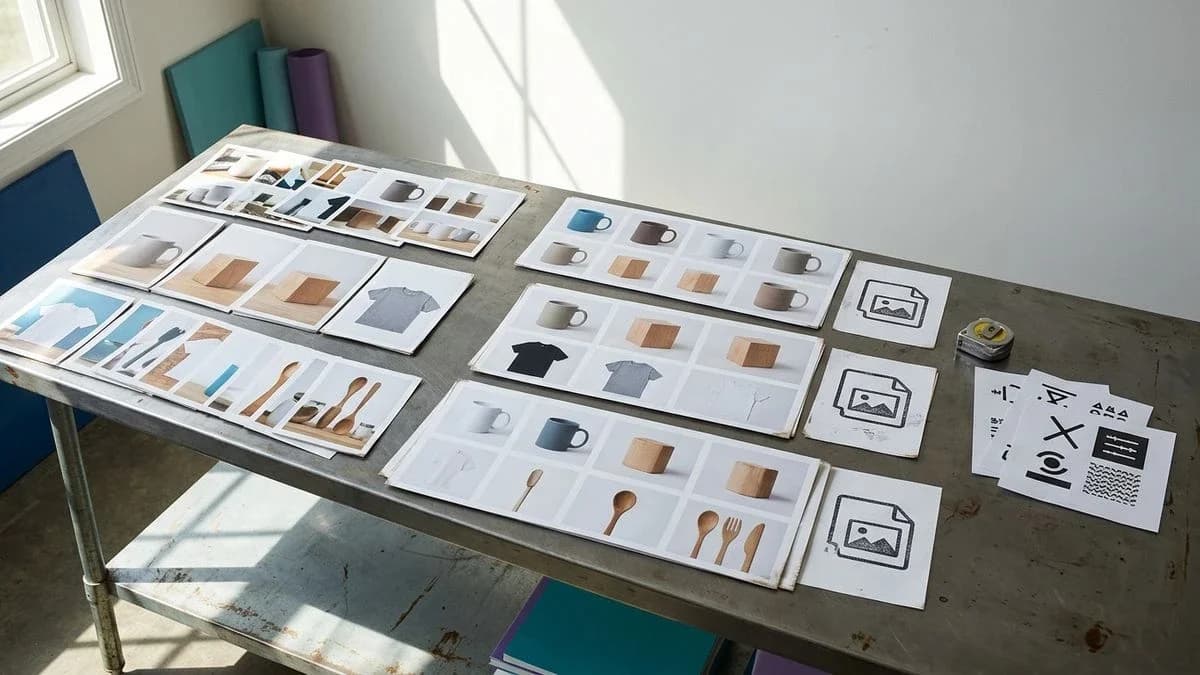
Bulk WooCommerce product image optimization means measuring, describing, and correcting catalog files in one pass instead of opening every product page. You check dimensions, format, repeated photos, and alt text. A crawler reads the file, the alt attribute, and the page text; it does not guess the material or size unless they are visible or written down. Anyone managing dozens or hundreds of products saves time by stopping work on one photo at a time.
In practice, the crawler downloads the image URL, checks its file size and proportions, compares the same file across product pages, and reads the alt text when available. What is usually missing is basic and repetitive: an empty alt field, a filename such as IMG_3829, the same photo used for the blue and green variants, or phone photos that are too small for paid channels. Google Shopping and Meta catalogs do not understand a product from a blurry photo: they need a readable, distinct file aligned with the title. The same applies to a feed for shopping assistants, where the image field is one of the nine required fields in the OpenAI specification (item_id, title, description, url, brand, seller_name, image_url, availability, price with currency).
Why catalog photos consume the whole day
The real cost is not the plugin. It is opening every product, uploading a file, writing the alt text, and repeating the process for every variant.
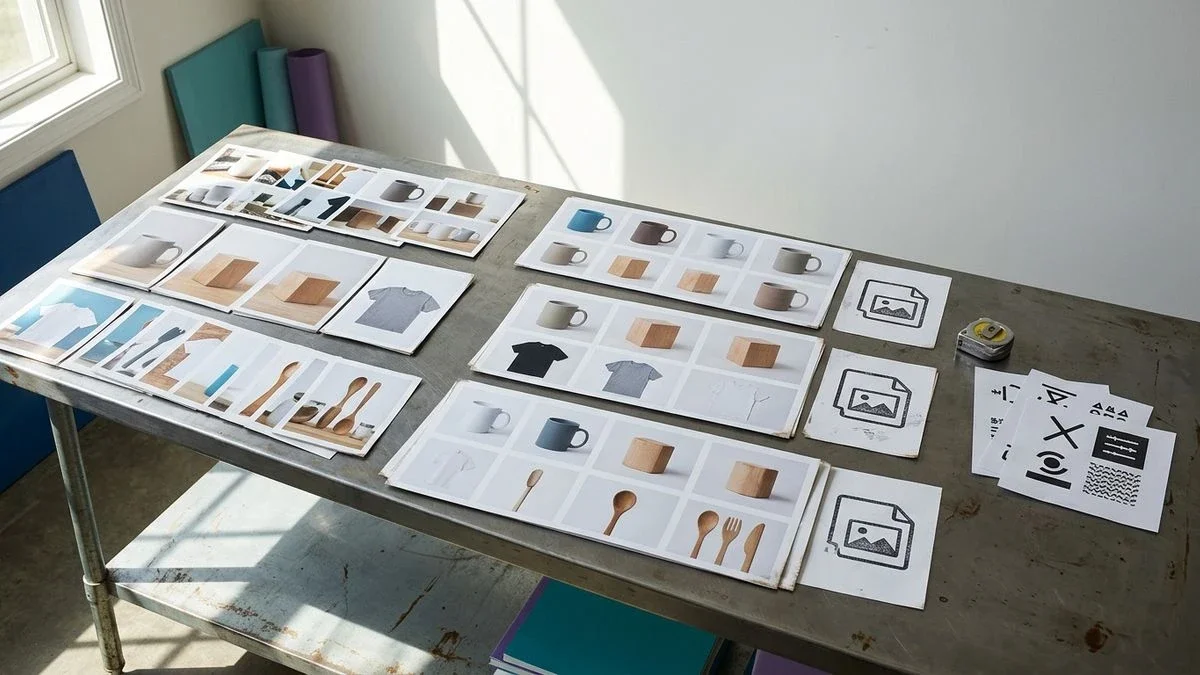
A WooCommerce store quietly accumulates three layers of work: the Media Library, the featured image, and the gallery. Each layer has its own fields, file, alt text, title, and caption, and none of them align automatically. Anyone also selling on Amazon, eBay, Etsy, or Vinted often copies the same photo from one channel to another, then ends up with ten product pages pointing to one file. The time disappears in the handoff, not in the photographic quality.
According to the WooCommerce developer blog, starting with WooCommerce 11.1, variation galleries will be enabled for every store. More photos per variant is good news for shoppers and extra work for anyone cataloging manually: each variant can have its own gallery, and a one-product-at-a-time workflow does not scale.
For anyone with little time for daily routinesAnyone who opens the store admin after serving customers or handling shipments does not have a spare window for a hundred product pages. You need a list showing which files are below the required size, which are shared, and which have no alt text, followed by one action. The goal is not to “do SEO for photos”; it is to close visible gaps before the next import.
An artisan selling ceramics with about forty productsWith a small catalog, the risk is not volume but repetition. The same angle ends up on the plate set, the mug, and the tray because “the workshop is visible.” To a crawler, it is one file. An illustrative example: a store with forty products, three colors per item, and one workshop photo reused across all variants. You do not need new photos for every angle; you need at least one distinct file for each visible shape and color, with alt text describing what is shown.
What a search engine reads in a product photo
Google reads the file, its dimensions, the alt text, and the product page content; it does not infer the price, season, audience, or an invented style from the photo.
The process is straightforward. The crawler downloads the image, assesses whether it is large and sharp enough for product results, reads the alt attribute, and compares it with the title and description. If the alt text is the filename or a copy of the title, it adds no information. If the same URL appears on ten products, there is no distinct signal for each one. The fields usually missing are precisely these: specific alt text, a unique file, a meaningful filename, and alignment between what is visible and what is written.
According to Google Search Central, there are two main classes of structured data for products. Page content and structured data work together: markup confirms price and availability when it matches the page. The image remains a visible fact; if the markup contains one photo and the page shows another, or if the alt text is missing, the signal is weakened. No assistant “reads only” the markup. Vague facts, in both the text and the data, are what hold the product page back.
Page content and structured data work together: markup confirms price and availability when it matches the page.
From a photo, a system can read only what is visible: a printed brand, color, size on a label, obvious material, or codes on the packaging. It does not estimate price ranges, measure the item if no measuring tool is in view, or infer the season, use case, or audience. Filling empty fields with facts from the web is a separate action to request explicitly, not something to guess from the photo.
- A distinct file for each product or at least each visible variant, such as color, shape, or packaging.
- Dimensions and format suitable for paid channels, not just the theme storefront.
- Alt text based on what is visible, in the language of the product page.
- A descriptive filename without camera-generated sequences.
- No workshop photo reused across different products.
- Alignment between the title, alt text, gallery, and any Product markup.
- GTIN only when read from packaging, a PDF, or a CSV column; never invented.
How to find undersized and shared files in one pass
Measure every catalog image and group the URLs used by multiple products, without opening product pages one by one.
WooCommerce’s native views are not designed for this. Media › Library shows the files, not “how many products use them.” Products › All Products shows the thumbnail, not whether that thumbnail is shared. The check must be done from a list, using columns or filters for dimensions, format, and reuse. A small file may look fine in the theme and still be rejected by a paid channel. A reused file can go unnoticed until the URLs are compared.
- Export or crawl the public catalog and keep, for each SKU, the featured image URL and the gallery image URLs.
- Mark files below the threshold for the channel you care about, storefront, Google Shopping, Meta, or a ChatGPT feed, instead of judging by eye.
- Group identical URLs: if two SKUs point to the same address, you have an effective duplicate, even if the titles differ.
- Open only the flagged groups. Replace the file or detach the variant gallery, then realign the alt text.
- Run the same check again: the removed reuse and corrected dimensions should disappear from the findings.
Anyone publishing on Amazon, eBay, Etsy, or Vinted as well as WooCommerce tends to keep “the good photo” in one folder and upload it everywhere. On Vinted, publishing remains manual: you prepare the listing and upload it by hand, without a suggested price based on historical data. The problem is not the channel; it is the single file. If WooCommerce is the source, every variant should have at least one dedicated photo before you copy it elsewhere.
How to write alt text by looking at the photo
Useful alt text describes the color, shape, and visible details in the photo, in the language of the product page. It does not copy the title or stuff in keywords.
WordPress exposes the Alt Text field in Media › Edit and again on the product page. Filling it in manually for a hundred files creates two errors: alt text identical to the title, or an empty field because “the photo is obvious.” Text written while looking at the photo says what a crawler cannot invent: “forest-green glazed ceramic mug with a loop handle and unglazed base.” It does not say “Nordic kitchen design gift idea” when none of those things appears in the photo.
- Open the image, not the product title. List only what is visible: object, color, obvious material, and printed details.
- Write a sentence in English, or in the language of the product page, without a trail of keywords.
- If the catalog has multiple languages, the alt text should follow the page language rather than one copied text.
- Do not put the price, season, or audience in the alt text: they are not in the photo.
- Save it in Media, then check that the product page does not contain different or contradictory alt text.
An illustrative before-and-after example. Before: file IMG_4402.jpg, empty alt text, product title “Handcrafted Mug.” After: file forest-green-ceramic-mug-loop-handle.jpg, alt text “Forest-green ceramic mug with a loop handle and unglazed base.” The facts are the same, with no invented claims. If you rewrite the product page, you must preserve the merchant’s facts: a measurement found on the web that contradicts the title does not belong there.
How to make bulk corrections without opening every product page
Work from the product list: select the findings, confirm the action, and keep a record of what changed, with a rollback option if needed.
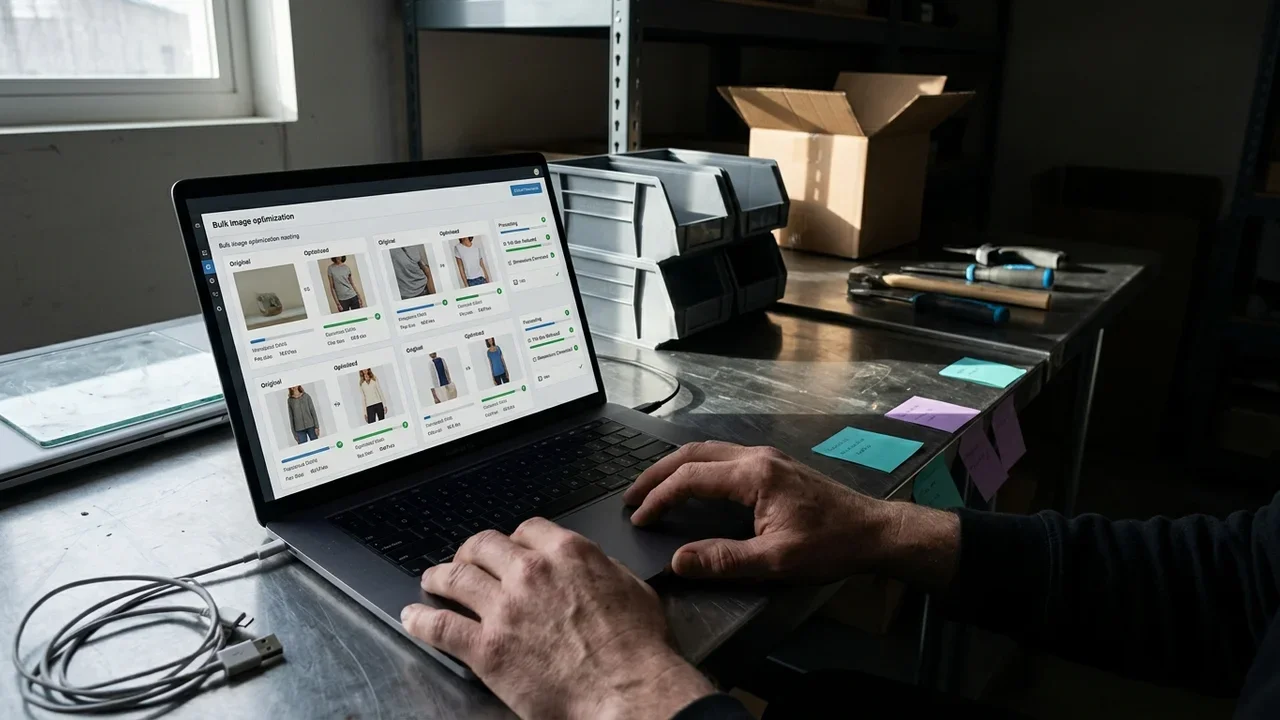
Native WooCommerce offers limited bulk edits, price, stock, and categories, but not one pass for alt text, reused photos, and format. For images, you still have Media, the product editor, and, from WooCommerce 11.1, variation galleries on every store. Without a findings list, you still end up inside each product page. The useful workflow is the reverse: diagnose in a column, act on the selection, and confirm explicitly. No silent corrections on the live catalog.
- Filter products with image problems: shared files, empty alt text, or format and dimensions below the chosen channel’s threshold.
- Select the batch. Clearly distinguish free actions from paid ones and read the cost before confirming.
- For alt text, generate the wording from the photo and review uncertain phrases, such as brands, certifications, or materials that are not visible.
- For duplicates, assign one file per SKU or group genuine variants with confirmation instead of detaching galleries at random.
- Sync the product pages with WooCommerce. Check a sample of ten product pages, not all of them.
- Keep a rollback option: confirmed free corrections remain reversible for a defined period, so an incorrect Title Case conversion or alt text does not stay stuck.
Bulk actions are useful when the selection can include many product pages, not when adjusting one unique item. An artisan with forty products can close out duplicates in one session. Anyone with three hundred SKUs and three channels needs the same list, only longer: the process does not change.
Common mistakes
The most common mistakes are empty alt text, shared photos, files that are too small for the channels, and alt text copied from the title.
Empty alt text or an alt field identical to the filename appears like this: in Media edit mode, the field is blank or contains IMG_3829. This happens because WordPress does not require alt text on upload while the theme still displays the photo. Fix it by writing the alt text from the photo, in the page language, and checking the list again, not by relying on memory of the last product pages edited.
A photo shared across multiple products appears as the same thumbnail on different SKUs and the same URL when the page is inspected. This happens when a file is uploaded once to Media and then attached again. Fix it with one photo per visible variant, or by deliberately grouping genuine variants, such as the same product with different sizes, colors, or packaging, instead of pretending that ten distinct product pages exist.
Undersized files appear like this: the photo seems acceptable in the storefront, but the listing is not ready for paid channels or the image is cropped. This happens with phone photos sent through chat and uploaded again. Fix it by replacing the file, not by “zooming” it in the theme. If you use a new studio background, check it by eye: it is not automatic background removal and does not claim a miraculous resolution.
- Alt text copied from the title: the crawler reads the same string twice and gets zero visible details.
- Packaging photo used as the only image for a loose product, without showing the item itself.
- Variation gallery still disabled on older stores: it is worth updating and then uploading photos for each variant, since from WooCommerce 11.1 variation galleries are planned for every store.
- GTIN placed in the alt text or filename “for ranking”: it does not help, and a GTIN should be read only from the merchant’s materials, including its check digit, never searched for on the web.
- Generated images used without labeling when they serve as illustrations: if the photo does not exist, the AI-generated image is declared as such.
How to measure the result with a score instead of intuition
Measure each product page for classic search, assistant readiness, and field completeness, then review the same list after making the corrections.
“The photos look good” does not tell you whether the alt text exists, whether the file is unique, or whether the page is ready for Google Shopping, Meta, the storefront, or a ChatGPT feed. A product-level score with finding groups, identity and fields, images, text, duplicates and consistency, synchronization, and channel readiness, makes the gap visible. Completeness counts missing or incorrect fields; brand relevance indicates whether the product page is in line with the company profile and consistent with its title and category. It is not a ranking guarantee and not a search engine’s published eligibility criterion: it is a list of facts to fix. Fixing them makes it more likely that the product page can be cited, nothing more.
A photo shared across ten product pages does not describe ten products: it describes one file, and crawlers treat it that way.
If you connect Search Console, the useful comparison is of clicks and impressions before and after each correction. If the data is insufficient, say so: do not invent an uplift. The same principle applies to reviews: an aggregate rating should be displayed only when it reflects genuine store reviews, never a convenient rating.
How Katapic fixes a WooCommerce catalog today
Katapic crawls the catalog in read-only mode, assigns scores to product pages, and corrects images and text only after confirmation, without inventing specifications.
The free scan of a public WooCommerce catalog, without an account, reads part of the catalog and leaves the store unchanged. Each product page receives two separate scores, classic search and assistant readiness, along with a data readiness check; relevance and completeness come with a free account. The verification engine is deterministic and does not invent information: it uses a set of codes organized into families, each with a severity, a public source for the rule, and a correction path. The list shows a column of clickable findings.
The image check measures dimensions and format, detects files shared across multiple products, and writes alt text by looking at the photo, in every language, included. Minimum size thresholds change by channel and over time, so check the current requirement for Google and Meta when publishing. The scanner does not remove backgrounds automatically and does not claim resolutions. If a scene or studio background is needed, the AI studio starts from a photo and a short description, with one credit per image, and the result must be checked. Images for products without photos can come from a PDF, an upload, the web with your confirmation, or an illustrative image generated with AI for one credit.
Bulk actions are available from one menu, with free and paid options clearly separated and the credit cost shown before confirmation. Rewriting a product page costs one credit; generating an image costs one credit. Rewriting goes through a claims checker: brands and certifications are not invented, the merchant’s data takes priority over the web, and the credit is not charged if the text fails. Free corrections, Title Case for all-caps titles, HTML cleanup, condition, a no-manufacturer-GTIN statement, variant grouping, and Google category, start only after confirmation and remain reversible for a defined period. WooCommerce synchronization is bidirectional, using the free plugin. Shopify connection is not available. On Vinted, the listing is prepared and published manually.
Start with a Katapic catalog scan in read-only mode. Then work through the “fix now” list: shared photos, missing alt text, and product pages that are not ready for the chosen channel. There is no subscription: try it once without a card, then use credit packages that do not expire. The software handles the operational step and gets out of the way, leaving you time to sell.
Frequently asked questions about WooCommerce product images
How do you optimize WooCommerce product images in bulk?Start with a catalog list, not an individual product page. Measure dimensions and format, find URLs used by multiple SKUs, write alt text from the photo, and apply corrections to the selection after confirmation. Native WooCommerce does not group reused files; you need a column-based diagnosis and one action. Check the same list again instead of relying on memory.
Can alt text be written automatically in WooCommerce?WooCommerce does not fill in alt text automatically on upload. You can generate the text by looking at the photo, in the language of the product page, and then review it. Alt text should describe what is visible, not copy the title or add a season or audience. An automatic step without review risks inventing brands or materials: the merchant’s data remains the source, and anything not shown in the photo cannot be inferred.
How do you find duplicate images across WooCommerce products?Compare file addresses, not thumbnails by eye. If two products point to the same featured-image or gallery URL, the file is shared. Media › Library does not usefully show “used by N products” for catalog management. A scan that groups identical URLs completes the process: replace the file or recognize genuine variants instead of pretending that the product pages are distinct.
What does a WooCommerce product image check inspect?It checks dimensions, format, reuse of the same file, alt-text presence, and consistency with the product page. It does not estimate the price from the photo or measure the item if no measuring tool is visible. For paid channels, it flags files below the threshold and product pages that are not ready. The result is a list of facts to correct, not a promise of rankings on Google or in assistants.
How do bulk actions work on a WooCommerce catalog?Select a batch from the product list and choose one action, with the cost visible before confirmation. Corrections do not run silently and remain reversible for a defined period when they are free. Check a sample after the batch. Anyone with little time should handle duplicates and empty alt fields first, followed by undersized files.
What is the product image SEO score?It is a product-level score based on observable facts: unique file, dimensions, alt text, alignment with the title, and channel readiness. It is not a criterion published by Google or ChatGPT and does not guarantee citations. It helps you work through what is still missing in the right order instead of adjusting photos at random.
Learn more
Frequently asked questions
- How do you optimize WooCommerce product images in bulk?
- Start with a catalog list, not an individual product page. Measure dimensions and format, find URLs used by multiple SKUs, write alt text from the photo, and apply corrections to the selection after confirmation. Then check the same list again.
- Can alt text be written automatically in WooCommerce?
- WooCommerce does not fill in alt text automatically. You can generate the text by looking at the photo, in the language of the product page, and then review it. Alt text describes what is visible, does not copy the title, and does not add a season or audience that is not shown.
- How do you find duplicate images across WooCommerce products?
- Compare file addresses. If two products point to the same URL, the file is shared. A scan that groups identical URLs lets you replace the file or recognize genuine variants instead of pretending that the product pages are distinct.
- What does a WooCommerce product image check inspect?
- It checks dimensions, format, reuse of the same file, alt-text presence, and consistency with the product page. It does not estimate the price from the photo. For paid channels, it flags files below the threshold. The result is a list of facts to correct, not a promise of rankings.
- How do bulk actions work on a WooCommerce catalog?
- Select a batch from the product list and choose one action, with the cost visible before confirmation. Corrections do not run silently. Check a sample after the batch.
- What is the product image SEO score?
- It is a product-level score based on observable facts: unique file, dimensions, alt text, alignment with the title, and channel readiness. It is not a criterion published by Google or ChatGPT and does not guarantee citations. It helps you work through what is still missing in the right order.