
How to clean supplier product data in WooCommerce?
A supplier file is not a ready-made product page. Here’s how to clean product data before importing it into WooCommerce without inventing codes or measurements.
Clean supplier product data before uploading it to WooCommerce
Cleaning supplier product data before importing it into WooCommerce means reading the file, keeping only the facts supported by the price list, and fixing the fields used by the store. A CSV or PDF contains titles, prices, codes, and descriptions written for another catalogue. Before importing, check product identity, HTML, condition, variations, barcodes, and category. Anything the file does not state stays empty. Preview the cleaned file and only turn it into a product page after confirming it.
Google’s crawler and the store’s software read the published product page, not the supplier’s original spreadsheet. WooCommerce imports the columns you map: an empty field stays empty, an incorrect code is imported as it is, and a title written entirely in uppercase remains that way. If the description contains tags copied from business software, the same SKU appears twice, or each colour is treated as a separate product, those defects become pages. Fixing the file first avoids having to redo the same rows after the text is already online.

Why a dirty supplier file damages the catalogue before publication
A dirty file damages the catalogue because WooCommerce treats imported values as the product’s identity, and subsequent channels read that identity.
The supplier writes for its own price list: internal codes in the title, the same description for many references, mixed units of measurement, the price inside the text, or HTML from an old product page. In your store, that text becomes the name customers read and the information used to understand the brand, material, and availability. If two rows share an SKU, the import updates one product or leaves a conflict that becomes visible later. If the condition is missing, a channel may find an undeclared new item.
An illustrative example: a ceramics retailer receives a CSV every month with one row per colour and no parent column. If the file is imported as it is, a group of around forty references becomes forty simple products. Grouping them later is slower than fixing the file when it arrives.
For those who import the price list and publish it the same dayThose with little time for their daily routine often map the name, price, and SKU and start the import. Before clicking, run four checks on the file: titles are not entirely uppercase, SKUs are unique, the price appears only in the price column, and the description contains no unrelated tags. The Google category and variation grouping can follow immediately, but do not publish a product page whose title is only the supplier’s internal code.
For those who manage a few dozen references manuallyThose selling ceramics, fabrics, or spare parts and managing around forty references often copy and paste from the supplier’s PDF. The risk is not the volume; it is copying the same generic sentence repeatedly. A useful product page starts with the facts in the row: material if present, measurement if present, colour, and brand. If the supplier’s promotional sentence adds no fact, leave it out of the short description.
The supplier file is a source, not a product page: only the fact supported by the row enters the store, written in the right field.
What to look for in the supplier file before importing
Look for duplicates, titles that cannot work as product names, leftover HTML, split variations, invalid codes, and empty identity fields.
Open the CSV in a spreadsheet and do not save it in a format that removes leading zeroes from codes. If accented letters become symbols, the file is not UTF-8 and must be exported again before making any corrections. Then read the headers and decide on the mapping. Not the other way around.
- Duplicate or empty SKUs, and the same code used for both parent and child.
- Titles written entirely in uppercase, or titles consisting only of the internal code.
- Descriptions containing tags, HTML entities, or links to the supplier’s website.
- Price or discount written in the text instead of the price column.
- One row per colour or size, with no parent column and no attribute.
- GTINs with an unusual length, spaces, or a digit that does not pass validation.
- Missing brand, missing store category, or mixed units in the same column.
- Missing images, the same photo URL used for several products, or a file that does not match the SKU.
Mark the rows to ask the supplier about and the ones you can fix without adding facts. An empty cell is better than one filled in by guesswork.
How to clean the file in six steps before importing it into WooCommerce
Clean the file in six steps: titles, HTML, condition, variations, barcodes, and category, without adding facts that the row does not contain.
Work on a copy and keep the original file intact so you can compare every value you change. In a WooCommerce CSV, many headers remain in English even when the store is in another language: Name, SKU, Regular price, Description, Short description, Categories, Images, Type, Parent.
- Titles: remove fixed uppercase formatting and the internal code if customers do not need it. Keep the product type and the attribute that distinguishes the reference. Do not promise a use that the file does not state.
- HTML: remove tags, styles, and external links. Keep the sentences and, where useful, clean lists. The short description should not repeat the entire title or contain the price.
- Condition: write new, refurbished, or used in a dedicated column. If the supplier does not state it, do not infer it from the price.
- Variations: rows that differ only by size, colour, quantity, or pack become attributes of one product. The parent has Type variable, the child has Type variation, and Parent contains the parent’s SKU. According to the WooCommerce developer blog, from version 11.1 variation galleries are enabled for every store: if the file has a photo for the child, match it to the child.
- Barcodes: keep only the GTIN present in the file and check the GS1 check digit. Do not shorten it, lengthen it, or copy the code of a similar product.
- Category: assign the store category that customers browse. Suggest the Google category and confirm it against the published taxonomy; do not invent a nonexistent leaf category.
An illustrative example: in a hardware retailer’s price list, twenty screws differ only in length. The parent title states the type and material if the file reports them; the length belongs in the attribute. If the material is missing, do not add it to the title.
What must never be invented among GTINs, measurements, and specifications
Do not invent GTINs, measurements, materials, certifications, or uses: if the file does not report them, leave the field empty or ask the supplier.
A plausible completion is the hardest type of error to spot later. A rounded measurement, a material inferred from the commercial name, or a certification copied from another model enters the catalogue as a fact. Google Shopping, the Meta catalogue, and the ChatGPT product feed transmit those fields as they are.
Barcodes the supplier has not providedA GTIN cannot be obtained from the web or generated. If the check digit does not match, flag the code; do not fix it by changing a number. A product without a manufacturer code should be declared as such. In the Google-compatible profile, where the specification requires it, a GTIN or MPN is needed unless identifier_exists is set to no. That name belongs to Google Merchant Center; it is not a mandatory field in the ChatGPT feed. In OpenAI’s format, the nine mandatory fields are item_id, title, description, url, brand, seller_name, image_url, availability, and price with currency. GTIN and MPN remain optional.
Measurements and specifications missing from the rowCopy weight, dimensions, capacity, composition, and country of origin only when the cell reports them, with the unit written out. Do not convert centimetres to millimetres by eye or estimate a size from a photo in the price list. From a photo, read only what is visible, such as a printed code or colour, not a measurement or price. If you need a detail, ask the supplier.
An empty field can be completed later; an invented GTIN or measurement must be found and removed from every channel that has already read the product page.
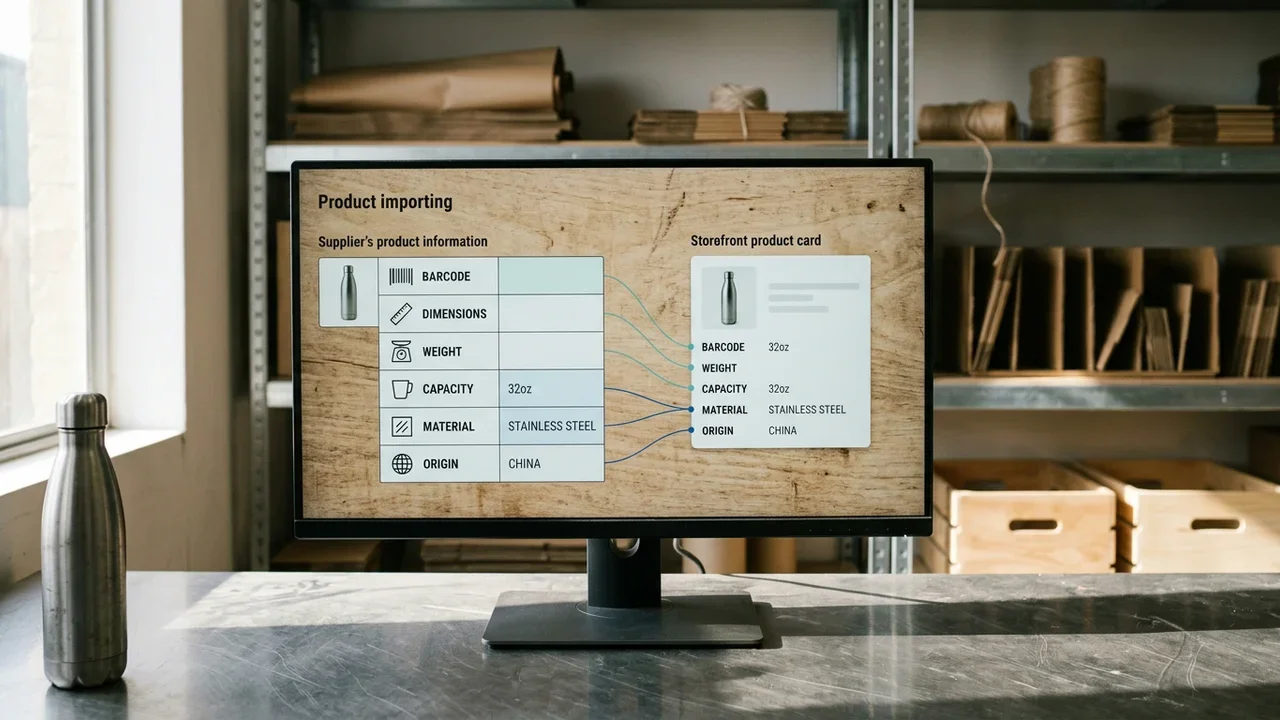
How to import the cleaned file and read the preview
Import the cleaned file from Products, Import: map the columns and confirm only after reading the preview of the identity fields.
In the dashboard, go to Products › Import. Upload the CSV, specify the delimiter, and indicate whether the first row contains the headers. In the mapping, each supplier column should point to one field. Put the name in Name, the SKU in SKU, the regular price in Regular price, and images in Images. Do not map the same paragraph to both the short and long descriptions.
According to the WooCommerce developer blog, WooCommerce 11.2 introduces GTIN matching in product CSV imports. This is useful when updating an existing catalogue: the row can find the product by GTIN, not only by SKU. It works only if the GTIN in the file is the real one. An invented code could match the row to the wrong product or fail to match anything.
- Save the CSV in UTF-8 and keep the code column in text format so leading zeroes remain.
- Open Products › Import, upload the file, and check the delimiter and encoding on the first screen.
- Map the columns. If you do not understand a column, leave it unmapped instead of sending it to a random attribute.
- Read the preview: title, SKU, price, type, and parent. Stop the import if a parent has no children or if a price has ended up in the description.
- Test a few rows, or a copy of the store, before importing the entire price list.
- Open three imported products: the public page, attributes, and gallery. Compare them with the corresponding file rows.
The preview does not replace checking the page. WooCommerce shows how it interpreted the columns; the page shows what customers read.
Common errors when cleaning supplier data
The most frequent errors are a shared SKU, an altered GTIN, HTML left in the description, variations imported as simple products, and a file saved with the wrong encoding.
Each error can be seen in the file, the preview, or the newly created product page. Fix it there, not by adding a sentence at the end of the description.
Repeated SKU. Two rows update the same product, or a variation disappears after the import. The supplier reused the code for the parent and child. Each sellable row needs a unique SKU, and the parent needs a different one. Do not treat the parent as purchasable if you sell only the variations.
GTIN changed manually. The code fails the check digit, or the same GTIN appears on two products. This results from changing a digit or copying a code from another model. Leave the flagged value or the field empty and ask the supplier for the data. Do not take a GTIN from the web just to fill the cell.
Supplier HTML in the description. Broken bold text and links leading away from your website remain on the page. The price list exported the source of an old product page, not clean copy. Remove the tags and keep only the sentences that state a fact.
Variations imported as simple products. Filters do not group colour and size, and the product pages are nearly identical. In the file, the type remained simple and Parent is missing. Correct the CSV on a test group before importing the entire price list again.
Wrong encoding. Accented letters in the published title have been replaced by symbols. The spreadsheet was not saved in UTF-8. Export the file again and reimport those rows instead of correcting the letters one by one in the store.
After importing: diagnosis and channel readiness
After importing, check that the facts on the page match the file and that channel fields are present rather than vague.
Open a sample: one simple product, one parent with variations, and one row that had empty fields in the file. Check the title, price, availability, brand, images, and attributes. Page text and structured data work together: markup confirms price and availability when they match what the page shows. According to Google Search Central, there are two main classes of product structured data. Markup does not compensate for a vague title or a missing brand: the missing facts remain missing in both the text and the data.
For the ChatGPT product feed, check the nine mandatory fields in the OpenAI specification: item_id, title, description, url, brand, seller_name, image_url, availability, and price with currency. A clean title and a present brand make the row more usable. No assistant publishes an eligibility criterion: complete data that matches the page increases the chances of a citation, but does not guarantee one. Check images separately. Make sure the main photo shows the product clearly and meets the size requirements of the channel you use. The same image shared by several products does not distinguish the references.
If you write questions on the product page, base them only on the product’s real data. Do not add a question just to fill space. Since 7 May 2026, Google has no longer displayed FAQ rich results: the value lies in a useful answer, not in an additional box.
How Katapic prepares the supplier file without inventing facts
Katapic imports the CSV by mapping columns and, for a PDF price list, shows the rows before confirmation without filling in facts that the file does not contain.
You can start from the WooCommerce store, a CSV, or a supplier catalogue in PDF. The price-list workflow is described in from PDF to product data: products and images are read page by page, and the rows are imported after you have reviewed them.
The diagnosis checks the data, images, text, and duplicates for every product. Corrections that do not require AI arrive with a preview and count: titles written entirely in uppercase, dirty HTML, condition, a declaration that the product has no manufacturer barcode, variations to group, Google category, brand, or store category when missing. They are applied only after your confirmation. The barcode is never taken from the web: it is validated with the check digit and, when it is genuinely missing, declared as missing.
Katapic writes to the products in your WooCommerce store. Before paid catalogue work begins, you can see how many credits are needed. The process, from diagnosis to the product pages you approve, is available at Katapic.
Frequently asked questions about cleaning supplier files
Before importing, recurring questions concern which columns to map, missing GTINs, missing measurements, and split variations.
How do you clean supplier product data before importing it into WooCommerce?Start with a copy of the file in UTF-8 and keep the supplier’s original file intact. Make the SKUs unique, fix the titles, remove HTML from descriptions, write the condition only if the price list states it, and group rows that differ only by size or colour. Validate the GTIN with its check digit and never invent one. Leave empty cells empty. Then, in Products › Import, map the columns and read the preview before confirming. This way, the public product page is created from the facts in the row rather than from a correction made later.
Which supplier-file columns should be mapped in WooCommerce?Map the clean title to the name, the unique SKU to the SKU field, and the price to the regular-price column, without symbols in the text. The long description receives the text without unrelated tags; the short description should not repeat the price or the entire title. Use the store category. Images need a reachable URL, not only the file name on your computer. Variations need the type, parent, and attribute columns. If you do not recognise a column, leave it unmapped, even if the supplier’s spreadsheet gives it an internal name.
What should you do if the supplier file is missing a GTIN?Leave the field empty. Do not generate a code, copy the code of a similar product, or search the web for a barcode just to fill the cell. You can ask the supplier for the data and reimport only those rows when it arrives, matching them by SKU. A product without a manufacturer code should be declared as such. In the ChatGPT product feed, GTIN is optional: the nine mandatory fields do not include the barcode, and an invented value does not make the row more reliable.
Can you fill in measurements and materials that the price list does not report?No. An estimated measurement or material inferred from the commercial name becomes a false fact in the product page, feed, and text later copied to another channel. Leave the field empty, or add the data only when the supplier has written it, with the unit included. Do not convert centimetres to millimetres by eye. Dimensions and price cannot be obtained from a photo of the price list. The description may repeat what is already in a column, not what is missing, and should not be filled just to make the page appear complete.
How do you import variations contained in the supplier file?Rows that differ only by size, colour, quantity, or pack should belong to one product. In the CSV, the parent has type variable and its own SKU; each child has type variation, the parent’s SKU in the Parent column, and the attribute value. Parent and child must not share an SKU. Import one group, open the product page, and check that the attributes can be selected before uploading the entire price list. Match child photos to the child if the file genuinely contains them.
Is a clean file enough for Google Shopping and ChatGPT?A clean file is the foundation, not proof that a channel will accept the row. After importing, compare the product-page fields with those read by the channel. For ChatGPT, the OpenAI specification requires nine mandatory fields, including title, description, URL, brand, seller, image, availability, and price with currency. GTIN and MPN remain optional and must not be invented. The page text and data must match. No tool guarantees a citation or position: complete data makes use of the product page more likely.
Further reading
Frequently asked questions
- How do you clean supplier product data before importing it into WooCommerce?
- Start with a copy of the file in UTF-8 and keep the supplier’s original file intact. Make the SKUs unique, fix the titles, remove HTML from descriptions, write the condition only if the price list states it, and group rows that differ only by size or colour. Validate the GTIN with its check digit and never invent one. Leave empty cells empty. Then, in Products › Import, map the columns and read the preview before confirming.
- Which supplier-file columns should be mapped in WooCommerce?
- Map the clean title to the name, the unique SKU to the SKU field, and the price to the regular-price column, without symbols in the text. The long description receives the text without unrelated tags; the short description should not repeat the price or the entire title. Use the store category. Images need a reachable URL, not only the file name on your computer. Variations need the type, parent, and attribute columns. If you do not recognise a column, leave it unmapped.
- What should you do if the supplier file is missing a GTIN?
- Leave the field empty. Do not generate a code, copy the code of a similar product, or search the web for a barcode just to fill the cell. You can ask the supplier for the data and reimport only those rows when it arrives, matching them by SKU. A product without a manufacturer code should be declared as such. In the ChatGPT product feed, GTIN is optional: the nine mandatory fields do not include the barcode.
- Can you fill in measurements and materials that the price list does not report?
- No. An estimated measurement or material inferred from the commercial name becomes a false fact in the product page, feed, and text later copied to another channel. Leave the field empty, or add the data only when the supplier has written it, with the unit included. Do not convert centimetres to millimetres by eye. Dimensions and price cannot be obtained from a photo of the price list. The description may repeat what is already in a column, not what is missing.
- How do you import variations contained in the supplier file?
- Rows that differ only by size, colour, quantity, or pack should belong to one product. In the CSV, the parent has type variable and its own SKU; each child has type variation, the parent’s SKU in the Parent column, and the attribute value. Parent and child must not share an SKU. Import one group, open the product page, and check that the attributes can be selected before uploading the entire price list. Match child photos to the child if the file contains them.
- Is a clean file enough for Google Shopping and ChatGPT?
- A clean file is the foundation, not proof that a channel will accept the row. After importing, compare the product-page fields with those read by the channel. For ChatGPT, the OpenAI specification requires nine mandatory fields, including title, description, URL, brand, seller, image, availability, and price with currency. GTIN and MPN remain optional and must not be invented. The page text and data must match. No tool guarantees a citation or position: complete data makes use of the product page more likely.