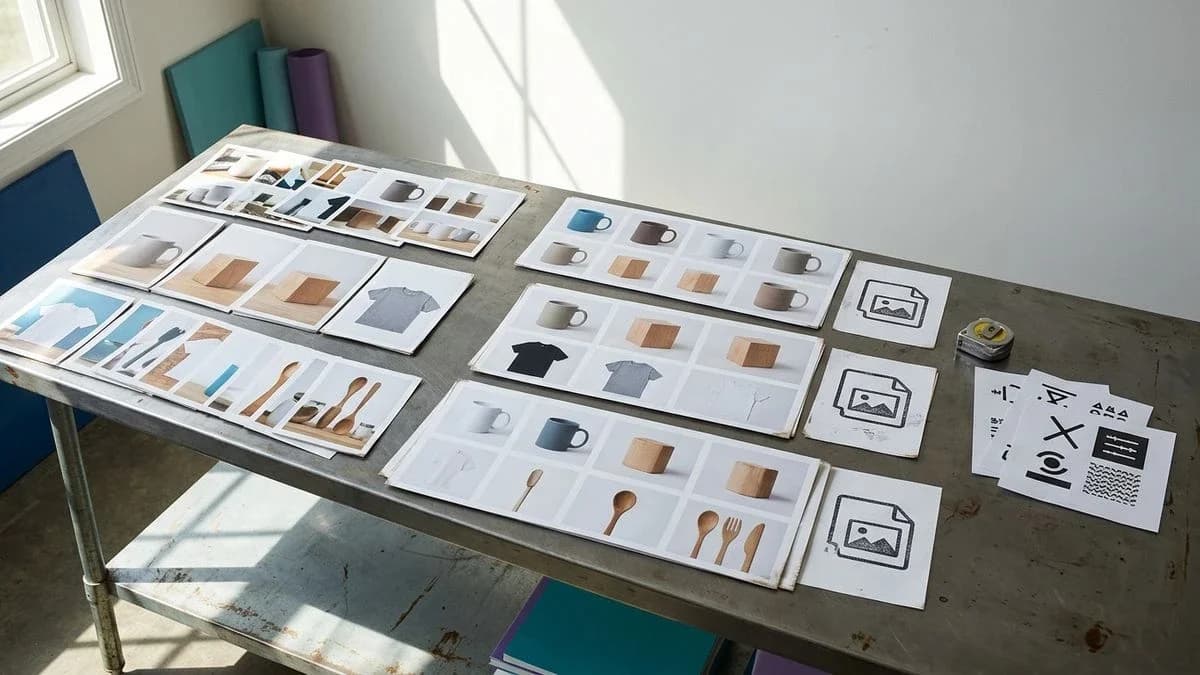
Why product image SEO in your catalog starts with the files
Google reads files, alt text, dimensions and image_link, not how beautiful the photo is. How to align the fields of your WooCommerce catalog.
Why catalog product image SEO goes through the fields
Product image SEO in a WooCommerce catalog is the work done on the photo's files and fields: file name, alt text, dimensions, format and the image_link field in the feed. A crawler does not interpret the scene the way a person does: it reads the URL, the pixels, the alt attribute and whether the same file shows up on more than one listing. Fields that are empty or that contradict the title make the listing harder to match to the query. You start from these fields, not from rewriting the copy.
In a WooCommerce store the theme already exposes a Product block: name, price, availability, URL of the product page. The feed for Google Shopping adds image_link, additional_image_link, brand, gtin or identifier_exists. What is usually missing is not another plugin: it is the 400 pixel photo, the empty alt text, the same JPEG on three SKUs, the all-caps title that does not match the visible color. In Merchant Center, the path Products › Feeds flags these gaps as row errors. As long as the photo fields stay inconsistent, making the description longer does not change what the crawler can use.

Structured data comes before the words on the listing
A catalog feed is the named list of product fields (id, title, description, link, image_link, price, availability, brand, gtin or identifier_exists) that the crawler reads row by row, before any sales paragraph.
Structured data, in this sense, is not persuasive text: it is a set of labels. The Product markup that the WooCommerce theme already emits on the page and the feed file say the same things under different names. If image_link points to a file that does not exist, or if title says “red” while the photo is black, the crawler records a conflict. No generative engine publishes eligibility criteria; what can be observed, though, is that a listing with consistent fields is easier to summarize in an answer.
Before touching the descriptions, it is worth listing what the feed must contain for each SKU. The minimum fields to check by hand, row by row, are these.
- id: the stable SKU, never recycled on another item.
- title: the visible name, with no forced CAPS and no keyword tail.
- description: the merchant's facts (material, size, contents of the package).
- link: the canonical URL of the product page, reachable without logging in.
- image_link: the public URL of the main file, not a theme thumbnail.
- price and availability: value and status aligned with the store.
- brand: the real brand; if it is missing, leave it empty, do not make one up.
- gtin, or identifier_exists set when the manufacturer has no code.
Verification procedure on the store, without installing anything new:
- Open WooCommerce › Products › All Products and open a representative product page.
- Compare Product name, Description, Featured image and Gallery with the fields of the exported feed.
- Open Merchant Center › Products › Feeds and read the messages on that SKU's row, not the summary of the file.
- Fix first the fields the message names (image_link, gtin, title), then, if needed, the long text.
Product titles a crawler can match to the photo
The title is the string in the Product name field: it must name the object, one attribute visible in the photo and, if needed, the size, without repeating the store category.
An all-caps title, or one made of keywords (“vase vase ceramic blue decor shabby”), does not help the comparison with the image. The crawler reads title and alt as two separate strings; if they do not share the object and one visible trait, the listing stays ambiguous. In WooCommerce the field sits in Products › All Products › edit, at the top of the page, labeled Product name. The catalog summary is not used in place of the name.
A concrete example, same item. Before: “BLUE VASE”. After: “Blue glazed ceramic vase, 18 cm tall”. The front photo, the alt text and the title name the same object. Someone managing around forty ceramic items can apply the same rule to every kiln batch: material, visible color, size. Someone with little time for the daily routine starts with the titles of listings whose photo is shared or missing, because there the misalignment is visible even without tools.
A title that contradicts the photo is not “poorly optimized”: it is a piece of data the feed cannot use without a conflict.
Attributes, variants and the item_group_id field
A variant is the same item sold in a different size, color or pack, and in the feed it is grouped with item_group_id only when title and photo belong to the same family.
In WooCommerce, attributes are created in Products › Attributes (name, value, use in variations). On the product page, Product data › Variable product, you assign the values and upload one photo per variation when the color or the shape really changes. The feed translates the Color and Size attributes into color and size; item_group_id keeps the rows together. If every size points to the same JPEG of a black mannequin while color says “red”, the group is unreadable.
- Open WooCommerce › Products › Attributes and create only attributes that exist on the piece (color, size, material, pack).
- On the variable product, generate the variations and check that each row has its own SKU, a price and, if the color changes, its own image.
- Export the feed and check that the rows of the family share item_group_id and differ on color or size.
- Do not group distinct items just because they sit in the same store category.
In a small catalog every cup and every plate is a different id. The real variants are glaze and diameter, not “2026 model” in the title. One photo of the piece on the wheel, unique to each SKU, is worth more than a repeated moodboard. The material and color attributes must appear identical in title, alt text and, if one is used, in the feed.
Sellers who list the same item on several channelsThose who copy the listing to Amazon, eBay or Etsy often reuse a single cropped JPEG. The file keeps the same hash; the marketplaces treat it as a shared image. Better one master file per channel, same visual content, different URLs, alt text in the language of the listing. The SKU stays the sync key, never the random file name from the camera.
Files, alt text and dimensions of product photos
Image optimization in a WooCommerce catalog is the check of four facts about the file: pixels, format, uniqueness compared with the other SKUs, and alt text that describes the scene, not the keyword.
Alt text (alt) is the HTML attribute of the img: a sentence that says what is in the photo. It is not a list of queries. “Blue glazed ceramic vase seen from the front, 18 cm tall” is usable; “seo ceramic vase buy online” is not. In WooCommerce you write it in Media › Library, on the item, in the Alternative Text field, or on the product page under the featured image. It is filled in for each language of the listing, looking at the file, not by copying the title.
On dimensions, Google's documentation indicates for Shopping a minimum side of 500 pixels from 31 January 2027; Meta already asks for that threshold today. A 400x400 JPEG can still appear on the storefront, but image_link in the feed becomes a row error. Useful format: JPEG or WebP, long side of 1200 to 1600 pixels on the master file, contained weight without blurring the detail of the material. A descriptive file name (blue-glazed-ceramic-vase-18cm.jpg) helps the archive; it does not replace alt text and title.
- Open Media › Library, sort by date and open the files used as featured images.
- Read width and height: under 500 pixels on the short side, replace the file, do not settle for a CSS rule that “enlarges” it.
- Fill in Alternative Text describing the object, the visible color and the framing; leave the Caption field empty if it is not needed on the page.
- On the product page, the Featured image is image_link; the Gallery becomes additional_image_link, in the same order for every family.
- Search for the same file name or the same file size across several SKUs: if the photo is identical and the products are not, split the files.
Products without a photo: specifications are not invented. Honest alternatives: a shot on the workbench, extraction from the price list PDF, manual upload, a web search only with confirmation of the rights, or a generated illustration marked as such. The alt text of an illustration must say so (“illustration of the vase, not a photograph of the piece”). An assistant citing the listing can then tell a photo from a drawing.
Those with little time for the daily routineYou do not rename the whole archive in one evening. You filter the catalog on published listings with no featured image, then on those with empty alt text, then on files under the pixel threshold. Three passes, same Media › Library and Products › All Products menus. The long text is tackled afterwards, when title, photo and alt text match.
Categories, tags and Google taxonomy in the catalog
The store category organizes the menu; the Google category (google_product_category) is the id from the Shopping taxonomy that goes in the feed, and it is not replaced by a free-form tag.
In WooCommerce: Products › Categories for the site tree; Products › Tags for cross-cutting labels. Tags are not a keyword dump (“gift, shabby, made in italy, seo”). A useful tag is a filter the customer would actually use (dishwasher safe, set of two). The Google category is chosen from the official list and confirmed; a wrong id moves the item into a department where the photo makes no sense (a vase filed under “Consumer Electronics” makes image_link look suspicious).
- One store category: one branch, not three overlapping on the same SKU.
- One confirmed Google id, the same for all the variants of the family.
- Few tags, verifiable, never a repeat of the title.
- No “offers” category as the only classification: the crawler cannot derive the product type from it.
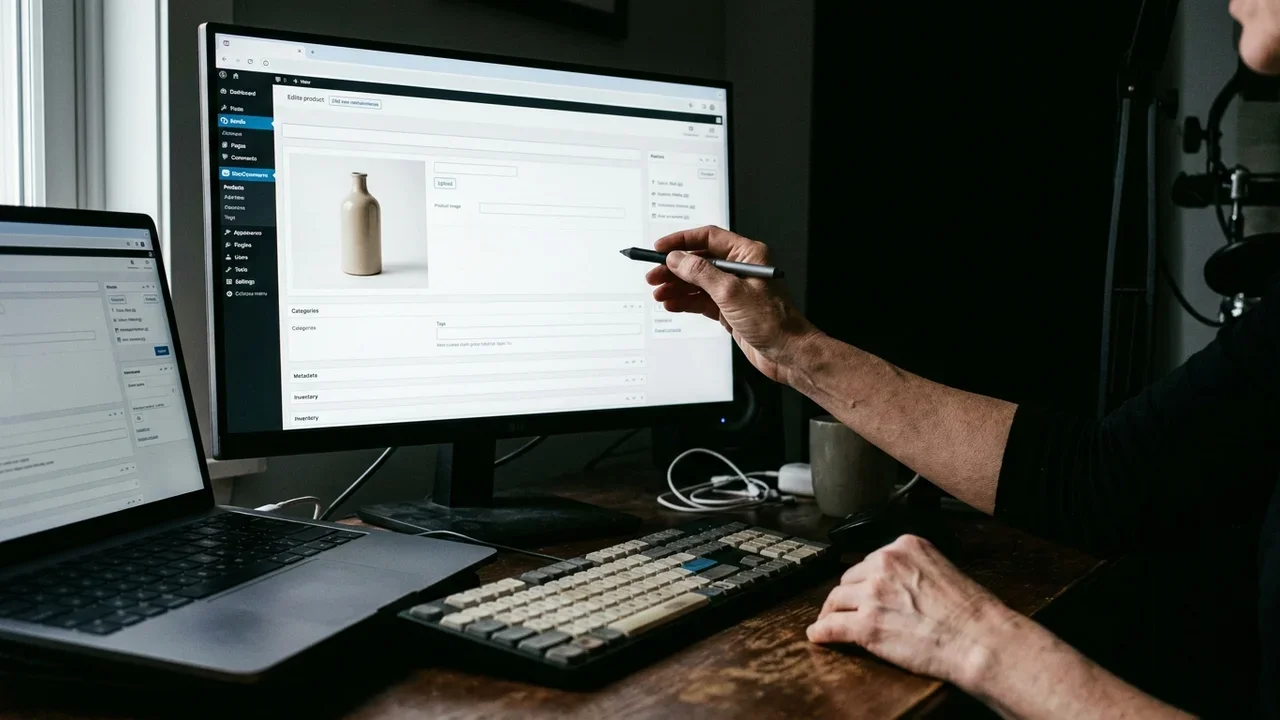
How listings cover long-tail queries
A long-tail query is a specific search (material, size, use) that the listing covers when title, attributes, alt text and description name the same facts, not when a paragraph of synonyms is added.
Example: “blue ceramic vase 18 cm handmade” is not chased with a block of text at the bottom. You write the size in the title, “ceramic” in the material attribute, the framing in the alt text, the fact “wheel-thrown piece, blue glaze” in the description. Whoever searches for that string finds a listing an assistant is more likely to cite without contradicting the photo. Product FAQs at the bottom of the listing (Questions, in WooCommerce often a theme block) serve real doubts: washable, size tolerance, contents of the package. Search Console queries are not copied in as a list.
Once the visual fields are stable, it makes sense to rewrite the description with the facts already on the listing. A tool for rewriting product descriptions for WooCommerce is useful only if it does not invent brands, certifications or sizes the merchant did not enter. The store's data beats a sentence found on the web.
Common mistakes on photos, feeds and WooCommerce listings
The most frequent errors arrive as row messages in the feed or as empty fields in Media, and they are fixed on the file or on the field named, not with a new description.
“Image too small [image_link]”. It appears in Merchant Center when the file image_link points to has one side under the required threshold. It happens because the theme thumbnail or a screenshot from the phone was uploaded. It is solved by replacing the file in Media › Library with a master of at least 500 pixels on the short side (better 1200), then updating the featured image and resubmitting the feed.
“Missing image” or empty image_link. The listing is published without a Featured image, or the URL is not public (protected folder, session parameter). Upload a file reachable without cookies and check the photo link field again in the CSV export.
Empty alt text in the Library. WooCommerce does not block publishing. The crawler receives an img with no alt. Open Media › Library, filter for items without alt text and write one sentence per file, looking at the photo.
Same file on different SKUs. There is not always a single message; the symptom is an identical gallery on items the title treats as distinct. It happens when the product is cloned and the photo is forgotten. Duplicate the file only if the object really is the same; otherwise shoot or crop one master per SKU.
“Invalid GTIN” next to a photo of the package. The code was read wrong (GS1 check digit failed) or made up. The GTIN comes from the package, the PDF or the merchant's CSV column, never from a web search. If the manufacturer does not have one, use identifier_exists with the value that declares its absence, without padding gtin with zeros.
A photo shared between different listings does not “save work”: it takes away the crawler's way of telling two ids apart.
How Katapic acts on photos, fields and catalog scores
Katapic reads the WooCommerce catalog in read-only mode, measures the gaps on every listing and acts only on the fields you confirm, without inventing product specifications.
The public catalog scan goes up to one hundred products, with no account. For every listing there are two separate scores (classic search and readiness for AI assistants), plus Relevance and Completeness, that is, the missing or wrong fields. The audit engine is deterministic, with no AI at this stage: forty-three codes in six families, including identity and fields, images, texts, duplicates and consistency. Every code has a severity, the public source of the rule (Google, Meta, OpenAI documentation) and a path to the fix.
On the photo side, the image check measures dimensions and format, flags files shared between several products and writes the alt text by looking at the photo, per language, at no cost. Google requires the 500x500 minimum from 31 January 2027; Meta already requires it. For products without a photo you can start from the PDF, from a manual upload, from a web search with confirmation of the rights, or from a generation labeled as illustrative, with the marking required by the AI Act, article 50. The free fixes (never silent) can be undone for thirty days: Title Case on all-caps titles, HTML cleanup, condition declaration, declaration of no manufacturer GTIN, variant grouping, confirmation of the Google category.
The rewriting of listings goes through a claims checker: brands, certifications and brand history are not invented; if a size found on the web contradicts the merchant's title, the merchant's data stays. For a first reading of the AEO scores you can use the free AEO checker for WooCommerce, in read-only mode. No markup added by Katapic: it strengthens the data the store already exposes. No promises of positions or citations; you get a list of fields to fix and, if you ask for it, texts and alt text aligned with the facts.
Does every product get an objective score on SEO, AEO and relevance?Yes, in the scan every listing has a score for classic search, one for readiness for AI assistants, plus Relevance and Completeness of the fields. It is not a guarantee of visibility: it is a measure of the gaps (photo, alt text, title, identifiers) against public rules. It is used to decide what to fix first, not to promise a rank.
How do you write alt text for product images?You describe what you see: object, color, framing, a size if it is legible. One sentence, in the language of the listing. You do not paste the title and you do not list the query. In WooCommerce the field is Alternative Text in Media › Library or under the featured image. If the photo is an illustration, the alt text says so. Leaving the alt text empty is worse than a simple, true sentence.
What dimensions are needed for images on Google Shopping?According to Google's documentation, from 31 January 2027 the file in image_link must have at least 500 pixels on the side. Meta already asks for that threshold. A master at 1200 to 1600 pixels on the long side avoids the “Image too small” message and keeps the detail of the material. Enlarging with the theme's CSS does not change the pixels of the file the feed downloads.
What happens if two products share the same photo?The crawler sees the same URL or the same file on two ids. If the titles describe different objects, a conflict arises between text and image. In WooCommerce it happens when the listing is cloned and the featured image is forgotten. Assign one file per SKU when the object is distinct; keep the same file only for variants identical in what is visible, grouped with item_group_id.
How do you optimize images in a WooCommerce catalog?You work in Media › Library and on the product page: file above the pixel threshold, descriptive name, descriptive alt text, featured image as image_link, gallery as additional_image_link, no watermark covering the product. Then you align title and attributes with what the photo shows. The long description comes last. Resubmitting the feed after the fix closes the loop.
How do you handle products without a photo in the catalog?You do not publish empty listings hoping the text will carry them. You use a real shot, a page from the PDF price list, a file you hold the rights to, or an illustration marked as such. The alt text must say if it is not a photograph of the piece. Inventing details (certifications, sizes, brands) to “fill” the listing creates a conflict with any later fact check.
Does Product markup replace a good image_link?No. The WooCommerce theme already emits the Product fields it has in the database. If the featured image is missing or too small, the markup repeats the gap. There is no need to add a second JSON-LD block with the same blanks. Fix the file and the field; the markup and the feed will read the same public URL. Katapic does not write markup: it strengthens the data the store already exposes.
Frequently asked questions
- Does every product get an objective score on SEO, AEO and relevance?
- In a WooCommerce catalog scan every listing can have a score for classic search, one for readiness for AI assistants, plus Relevance and Completeness of the fields. It serves to list gaps in photos, alt text and identifiers against public rules, not to promise positions or citations.
- How do you write alt text for product images?
- You describe the scene: object, visible color, framing and a size if it is in the photo. One sentence in the language of the listing, in Media › Library or under the featured image. You do not repeat the title and you do not list queries. If the file is an illustration, the alt text says so.
- What dimensions are needed for images on Google Shopping?
- According to Google's documentation, from 31 January 2027 image_link must point to a file of at least 500 pixels on the side. Meta already asks for that threshold. A master at 1200 to 1600 pixels on the long side avoids “Image too small”. The theme's CSS does not change the pixels the feed downloads.
- What happens if two products share the same photo?
- The same URL on two distinct ids prevents matching title and image. It happens when the WooCommerce listing is cloned without changing the featured image. Use one file per SKU if the object is different; the same file only for variants identical in what is visible, grouped with item_group_id.
- How do you optimize images in a WooCommerce catalog?
- In Media › Library you check pixels, format and alt text; on the product page the featured image becomes image_link and the gallery additional_image_link. Then you align Product name and attributes with what the photo shows. The long description is rewritten only afterwards, with the facts already present.
- How do you handle products without a photo in the catalog?
- You upload a real shot, an image from the price list PDF or a file you hold the rights to. Alternatively an illustration marked as such, with alt text that says so. Sizes, brands or certifications are not invented to fill the listing: those facts stay empty until the merchant provides them.
- Does Product markup replace a good image_link?
- No. The theme emits the Product fields already in the database. If the photo is missing or the file is too small, the markup repeats the gap. Fix the file and the featured image field; feed and page will read the same URL. Adding a second JSON-LD block with the same blanks does not solve the row error.