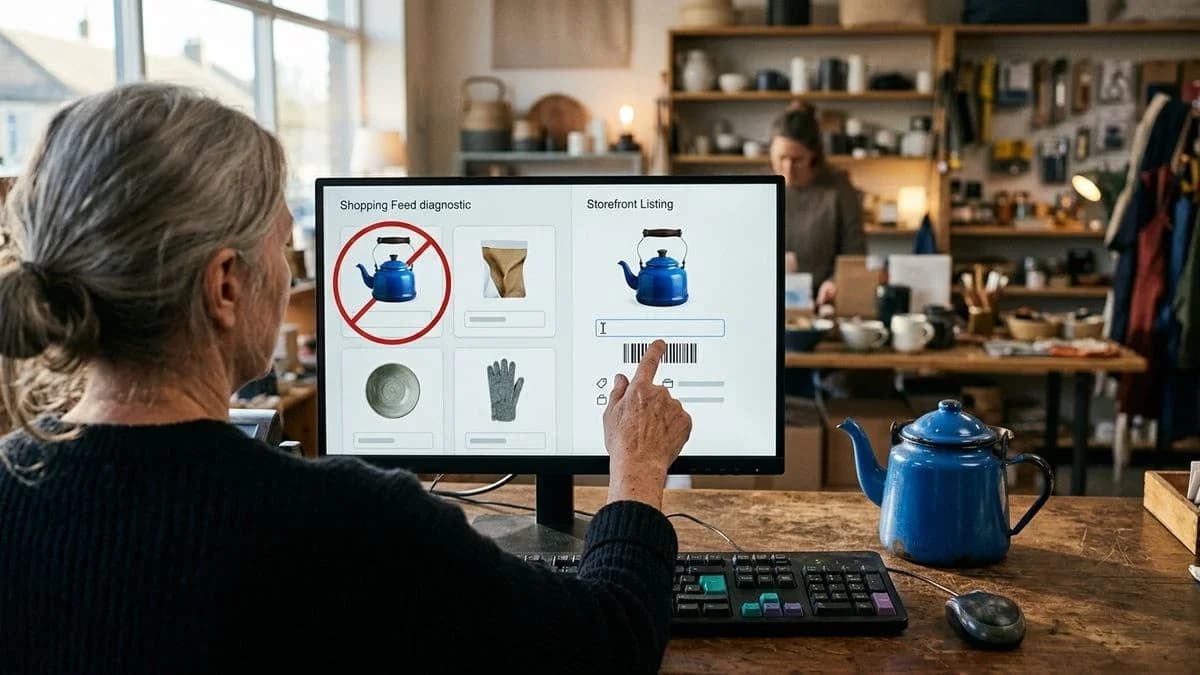
The reason is listed in Diagnostics. Correct the data in WooCommerce, align the page and feed, then request a new review without inventing codes.
Disapproved products in Google Merchant Center: the reason is in Diagnostics
Disapproved products in Google Merchant Center are items that Google has refused to show in Shopping ads and free listings from the feed. The reason is shown on the product page in Diagnostics: a missing identifier, an unacceptable image, or a price or availability status that differs from the page. Fix the issue by correcting the data in WooCommerce, regenerating the feed and requesting a new review. Page content and structured data work together: markup confirms the price and availability when they match what visitors can see.
A Merchant Center crawler does not judge the taste of a product page. It compares the file you submit with the public page and the channel's rules. If the feed says an item is available while the page says it is out of stock, the two facts contradict each other. If the shop price includes tax but the file excludes it, they are not the same price. If the image is a placeholder, a stock photo or covered with promotional text, the channel does not have a product image. Disapproval is the symptom. Missing or conflicting data is the cause, and it must be fixed in the product itself, not in a separate spreadsheet that the next export will overwrite.
Where to find the reason for a disapproved product
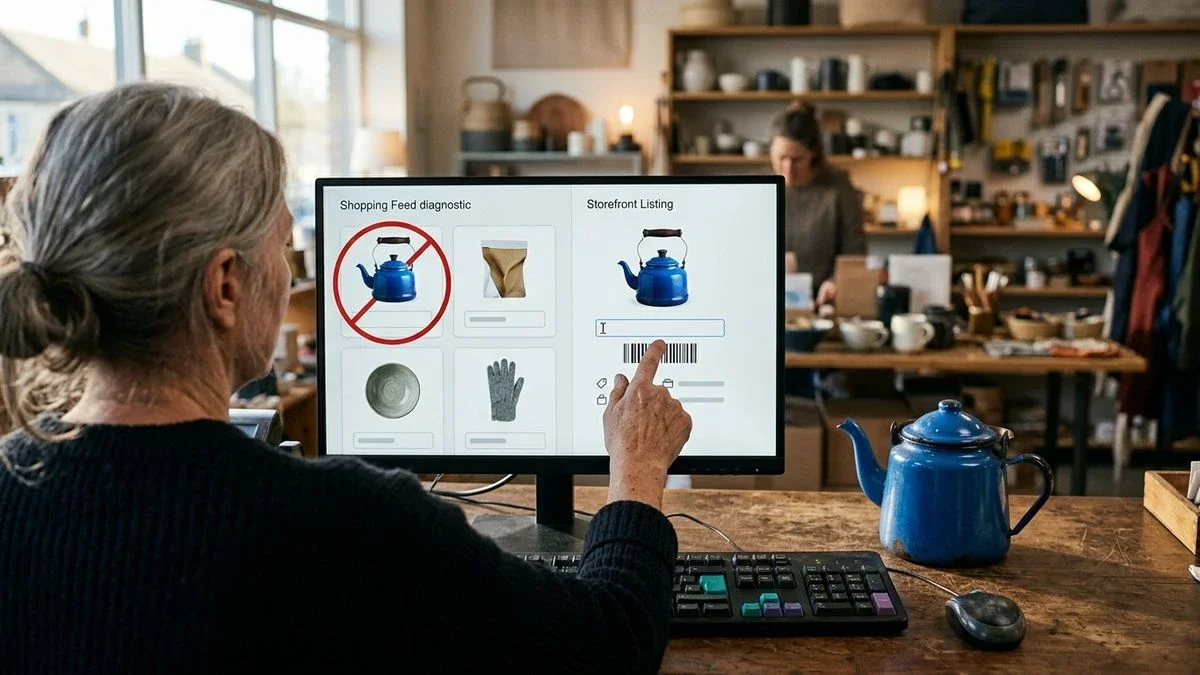
The reason is shown in Google Merchant Center, in the Diagnostics section. Open the issue and then the individual product; it is not a generic score for the store.
The screen groups problems and shows how many items are affected by each one. That count helps you decide where to start, but it does not replace reading the field. Open the group, select a product and note the disputed data: code, image, price, availability, page, brand or condition. Then open the same product in WooCommerce and compare the two. If the file and store already match, the problem may be on the public page: a redirect, a price visible only after selecting a variation, a different currency or promotional text covering the photo.
Work with homogeneous groups. All items without an identifier can be fixed with the same rule. All items whose price differs from the page can be fixed by aligning the list price, tax and feed. Mixing groups makes it harder to follow the work and leads to reviews being requested for products that are still inconsistent.
For those who only notice when the ads disappearPeople who manage a store alone often check campaigns rather than Diagnostics. The ads disappear and it looks like a budget problem. Before changing bids, open the disapproved products and read the reason. An illustrative example: a store with around forty ceramic products and a feed updated manually once a month. Three cups are disapproved because the pages mark them as out of stock while the file still sends them as available. There is no need to rewrite the titles. Align the stock status and regenerate the feed.
For those who keep WooCommerce as the source and marketplaces separateThose who also sell on Amazon, eBay, Etsy or Vinted may be tempted to correct the text on the marketplace and leave the store unchanged. For Merchant Center, the source is the feed connected to the site. If the plugin reads WooCommerce, the correction that matters is the one made in the store product. Text prepared for another channel does not update Google's feed by itself.
Which WooCommerce catalog data can lead to disapproval
In WooCommerce catalogs, disapproval is usually caused by a missing or invalid identifier, an image the channel does not accept, or a price or availability status that does not match the page.
The feed does not invent what the product page does not contain. If the GTIN field is empty in WooCommerce, the export sends a blank value or, worse, a value copied from another item. If the featured image is small, is a logo or is shared by dozens of variations, the channel sees an image that does not identify the product. If the plugin exports a cached file, the availability in the feed remains yesterday's status while the page is already updated.
According to Google Search Central, there are two main classes of structured data for products. They describe the item on the page. They do not replace the feed and do not make a different price approvable. Visible text, markup and feed must say the same thing. Rich markup on a page with another price confirms the conflict; it does not solve it.
When the GTIN is missing or the code does not matchThe GTIN is the manufacturer's code, usually an EAN. It belongs in the product's inventory data, not in a note at the end of the description. A code with an incorrect check digit is not an identifier; it is a string that looks like one. Two products with the same GTIN describe two versions of the same item. A product made in your own workshop often has no manufacturer's code. In that case, the Google Merchant Center feed must declare the absence of an identifier using the appropriate field, rather than filling it with a plausible number.
According to the WooCommerce developer blog, WooCommerce 11.2 introduces GTIN matching for product CSV imports, which is useful for cleaning and importing product data. If a supplier's price list includes the EAN, the import can match the row to an existing product instead of creating a duplicate. Save the code from the file you verified, not one found elsewhere and pasted because the cell was empty.
When the main image is rejectedThe image sent in the feed is usually the featured image. The channel rejects it when it does not show the product: a theme placeholder, store logo, generic box photo, discount text over the subject, a watermark covering the item or a format the export cannot convert. Even assigning the same photo to many products makes the items indistinguishable.
The problem multiplies with variations. The parent product often has no price of its own and should not be sent as a sellable item. Each variation needs its own image, price and availability. According to the WooCommerce developer blog, variation galleries are enabled for each store starting with WooCommerce 11.1. Use them to give each size and color its own image, then check that the feed uses that image rather than always using the parent image.
When the price and availability do not match the pageThe price in the feed is the price the customer pays now, in the correct currency and aligned with what the page displays. If the store shows a sale price while the file sends the list price, the two numbers do not describe the same fact. If the storefront shows tax included while the feed excludes it, there is still a discrepancy even when the base price is correct. Availability follows the stock status: available, out of stock or incoming. A preorder must be declared as such, not as ready for delivery.
Check the landing page as well. A link that ends on a category page, redirects to the home page, points to a product hidden from search engines or shows a price only after a variation is selected makes the crawler read a different page from the file. In that case, the WooCommerce data may be correct and the product can still remain disapproved.
The feed does not create a fact that the product page does not contain: if there is no GTIN, declare its absence instead of entering a code that looks genuine.
How to correct data in the product, not in the file
Make the correction in the WooCommerce product page, check it on the public page and only then regenerate the feed.
Opening the XML or CSV and replacing a cell may seem quicker. At the next export, the plugin reads the store again and the cell returns to its previous value. The file is a snapshot. The product is the source. This applies to titles, descriptions, Google category, identifiers, images, price and availability.
An illustrative example, explicitly presented as such and without sales results. Before: the all-caps title “BLUE CERAMIC CUP”, a description pasted from a page builder with empty markers, no capacity, a photo shared with three other cups, a feed price differing from the page because of tax, an empty GTIN and no declaration that the identifier was absent. After: the title “Blue glazed ceramic cup, 250 ml”, a description containing the material and capacity already present in the product data, a photo of the item without text, the same price and currency on the page and in the file, and the manufacturer's code declared absent because the item was handmade. No material added “because it sounds good”. No EAN copied from a similar cup.
- In Diagnostics, note the reason and the product identifier in the feed.
- Open the product in WooCommerce, check Inventory for SKU, stock and GTIN, and check the featured image.
- Align the title, actual price, currency, visible tax treatment and stock status with what the page displays.
- If a manufacturer's code exists, enter it and check the digit. If it does not exist, declare its absence. Do not generate one.
- Remove dirty HTML, empty shortcodes and claims that are not supported by your data.
- Choose the Google category in the published taxonomy, separate from the store category, and confirm it.
- Open the public URL: same price, same availability, same image and no unexpected redirect.
- Regenerate the feed from the store and compare the rows for the affected products before submitting.
The condition, new, refurbished or used, must be stated explicitly. An empty field does not mean new. When present, the brand is the manufacturer's brand, not your store name pasted into every row. For products made by you without a third-party brand, do not invent a brand to fill the cell.
How to check the feed before submitting it
Before submission, check that every feed row repeats the facts shown on the product page and public page, and exclude rows that are still inconsistent.
A validator does not approve products on Google's behalf. It shows you the gaps before Diagnostics reports them after another cycle. On the Katapic website, the product feed checker is free: it reads the file against the channel's public rules, without promising that a product will be shown.
For the Google Merchant Center file, compare at least these attributes with WooCommerce. These names belong to Google's feed, not to the product feed prepared for ChatGPT.
- Stable row identifier, unchanged for the same product with every submission.
- Readable title and description, without dirty HTML and without an identical title throughout the catalog.
- Landing page link, the URL that opens in the browser, without a redirect to another product page.
- image_link pointing to the item's featured image, not a placeholder.
- availability aligned with the stock status.
- price with currency, equal to the visible price, with tax included or excluded as shown on the page.
- brand only when it is the real brand; gtin only when it is the real code; identifier_exists to declare its absence.
- condition and google_product_category completed and confirmed, not randomly inherited from the parent product.
The product feed described by OpenAI requires nine different mandatory fields: item_id, title, description, url, brand, seller_name, image_url, availability and price with currency. GTIN and MPN are optional, and the GTIN must not be invented. link, image_link and identifier_exists belong to Google Merchant Center. Mixing them produces a file that one channel reads and the other rejects, even if “the fields are all there” at a glance.
A useful check before clicking submit: take five random rows, plus all the rows that were disapproved yesterday. Open the page. Read the price, availability, title and image. If a row does not match, leave it out of this submission. A shorter, consistent feed is better than a complete file that confirms the same issues.
Common mistakes when fixing disapproved products
The mistakes that cause disapproval to return include correcting the wrong file, inventing codes, leaving images shared and requesting a review before the page and feed match.
The issue returns after the export. You edited the downloaded CSV rather than the product page. At night or when the update button is pressed, the plugin rebuilds the file from WooCommerce and removes the patch. Fix this by writing the data into the product and regenerating the feed from there. If another tool overwrites the product, disable it or align it; otherwise the two systems will keep chasing each other.
The “courtesy” GTIN. The cell was empty, so you copied the EAN from a similar item or made one up with digits that looked right. Diagnostics reports an invalid identifier, or two products collide. Remove the false code. If the manufacturer assigned one, enter it and check the digit. If none exists, declare its absence. Do not take a barcode from the web just because a page with the same name displays one.
The image replaced halfway. You uploaded a new gallery photo but the feed still sends the featured image, which is still the placeholder. Or you updated the parent while the variations still send the shared image. Set the featured image for each submitted item, then check the URL inside the file, not just the preview in the management system.
The premature review request. You requested a new review while the page still showed the old price because the site cache had not updated. The crawler reads the cache and confirms the conflict. Open the URL in a private window, verify the price and availability, and only then request the review. There is no single processing time to quote: monitor the status in Diagnostics, which moves from under review to approved or disapproved again, and read the reason if the issue remains.
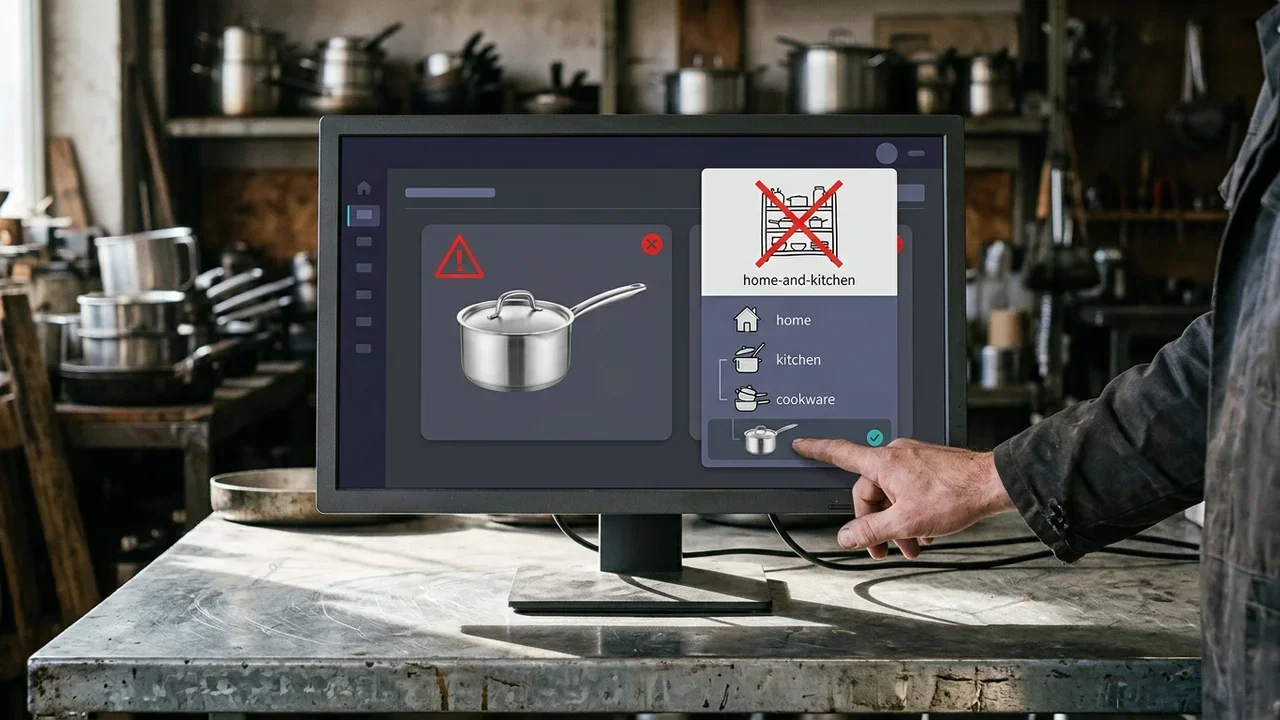
The store category mistaken for the Google category. “Home and kitchen” in the site menu is not an entry in Google's taxonomy. An out-of-list value may be ignored or disputed. Choose and confirm the published entry, then check that the feed includes it in the expected field rather than only in the description text.
How to tell whether the correction has been reread
The correction has been reread when Diagnostics no longer shows that reason for the product and the public page still matches the feed.
After submitting the updated file, open the product again in Diagnostics and request a review only for the items you have checked. Do not request it for the entire catalog if some rows are still inconsistent: a new rejection for the same reason tells you that the source has not changed. Record the submission date, identifier and corrected field. At the next check, compare those details rather than relying on the feeling that you “fixed the feed”.
Search Console does not replace Diagnostics. It tells you whether the page receives clicks and impressions and how the position reported by Google changes. A newly approved product may not show traffic immediately: no clicks does not mean that the disapproval is still present. Use the two places for two different questions. Diagnostics answers whether the product is accepted. Search Console answers whether the page is shown and clicked over time.
Keep a short list of open reasons: identifier, image, price and page. When a reason disappears from the group, do not reopen the product in the same pass just to make it look better. In the next pass, if the text is weak, work on the title and description using facts already present in the product. Mixing feed cleanup with creative rewriting is how unsupported materials, certifications and codes get added.
A correction that exists only in the exported file will return at the next export: fix the data in the WooCommerce product, which is the source.
What Katapic does for a catalog with disapproved products
Katapic reads the WooCommerce catalog, flags the fields disputed by the channels and applies free corrections only after you confirm them.
Katapic connects to WooCommerce with read and write access limited to products, using the free, open-source plugin on WordPress.org, without touching customers, orders or payments. Scanning a public store is read-only: without an account it covers the latest 100 products and returns an SEO score, an AI search score and a data-readiness check; with a free account it adds four scores and diagnostics for the entire catalog. The four dimensions are SEO, AI search, brand relevance and completeness. The 42 checks covering data, images, text and duplicates do not use AI.
Free corrections, always proposed and never silent, include all-caps titles, dirty HTML in descriptions, product condition, declaring that an item has no manufacturer's barcode, grouping variations, validating the Google category against the published taxonomy, and filling missing brand or store category data and making the main image square. Each step includes a preview and count, is applied after confirmation and, if it changes data, can be undone for 30 days. Barcodes are not taken from the web: they are validated with the GS1 check digit and, when legitimately missing, declared as such.
For Google Shopping, you can see which products the channel accepts and which fields are missing, with the public rule behind each issue. The feed can be downloaded with only products that pass the checks. The image check flags missing photos, main images below the size required by Google and Meta, rejected formats and the same image shared across products. After connecting Search Console, clicks, impressions and positions enter the app, and the impact panel shows how they change after each correction. Each product's history keeps scores and changes on the same timeline as the position reported by Google. No tool can promise that a disapproved item will be shown: you can only close the data issue reported by Diagnostics and measure what changes afterwards.
Frequently asked questions about disapproved products
These are the questions that appear in Diagnostics when a WooCommerce product is disapproved.
How do you fix disapproved products in Google Merchant Center?Open Diagnostics and read the reason for the individual product, not a judgment about the entire catalog. Correct that field in the WooCommerce product: code, image, price, availability or landing page. Regenerate the feed from the same store, open the public page and verify that the price and availability match the file. Then request a new review. If you only fix the export, the next submission will rewrite the error. For an item without a manufacturer's code, declare its absence instead of inventing a GTIN you do not have.
Which WooCommerce feed errors lead to disapproved products?The issues usually focus on a few fields. The GTIN is missing or the code fails the check digit. The main image is absent, is a placeholder, contains promotional text or is the same photo used for another item. The price or availability in the file does not match the page because the export is outdated or the tax treatment shown in the store is not the one sent. A page that redirects or shows the price only after a variation is selected creates the same mismatch even when the product record appears complete.
What should you do if the GTIN is missing in Google Merchant Center?First check whether the manufacturer assigned an EAN or another GTIN. If one exists, enter it in the WooCommerce product, check the digit and regenerate the feed. If the item is your own and no code exists, declare its absence in the field provided by Merchant Center instead of leaving the cell blank or copying the code from a similar item. Do not search the web for a code to fill the gap. A CSV import can match rows by GTIN, as described for WooCommerce 11.2, only when the code in the file is genuine.
Why does Google Merchant Center reject a product image?The channel expects a product photo, usually the featured image that the feed sends as image_link. In practice, it rejects theme placeholders, logos, generic boxes, discount text over the subject, watermarks covering the item and formats that the export does not deliver in a readable way. If many product pages share the same image, the items cannot be distinguished. Upload the photo to the correct product, set it as the featured image and give each variation its own image. Then check the URL in the file, not only the gallery.
How do you use a free product feed validator?Export the feed from the store and read it before submission, field by field, against the channel's public rules. A free validator flags rows without an identifier, price or image, as well as values that do not match what you expect from the product page. It does not replace Diagnostics and does not approve products on Google's behalf. After checking, correct WooCommerce, export again and compare the rows that were disapproved. Sending the old file just because the validator has already checked it does not close the issue.
How do you request a review after making a correction?Request the review from Diagnostics for the product whose page and feed you have already checked. Open the URL in a private window: the price, currency, availability and image must match the file you just submitted. If the cache still shows the old data, wait until the page is updated and only then request the review. There is no single processing time to promise. Return to Diagnostics and read the status. If the reason is unchanged, the source has not changed; do not keep requesting reviews for the same file.
Do the price on the page and the price in the feed have to be the same?Yes. The price in the feed, including the currency, must be the price visitors see, with the same tax treatment. A full list price in the file and a sale price on the page are different facts, even if the difference is small. The same applies to availability: available in the feed and out of stock on the page is a conflict, not a detail. According to Google Search Central, product structured data describes the item on the page; it confirms the price only when it matches the visible text. Align the product record, page and feed, then regenerate.
Frequently asked questions
- How do you fix disapproved products in Google Merchant Center?
- Open Diagnostics and read the reason for the individual product, not a judgment about the entire catalog. Correct that field in the WooCommerce product: code, image, price, availability or landing page. Regenerate the feed from the same store, open the public page and verify that the price and availability match the file. Then request a new review. If you only fix the export, the next submission will rewrite the error. For an item without a manufacturer's code, declare its absence instead of inventing a GTIN you do not have.
- Which WooCommerce feed errors lead to disapproved products?
- The issues usually focus on a few fields. The GTIN is missing or the code fails the check digit. The main image is absent, is a placeholder, contains promotional text or is the same photo used for another item. The price or availability in the file does not match the page because the export is outdated or the tax treatment shown in the store is not the one sent. A page that redirects or shows the price only after a variation is selected creates the same mismatch even when the product record appears complete.
- What should you do if the GTIN is missing in Google Merchant Center?
- First check whether the manufacturer assigned an EAN or another GTIN. If one exists, enter it in the WooCommerce product, check the digit and regenerate the feed. If the item is your own and no code exists, declare its absence in the field provided by Merchant Center instead of leaving the cell blank or copying the code from a similar item. Do not search the web for a code to fill the gap. A CSV import can match rows by GTIN, as described for WooCommerce 11.2, only when the code in the file is genuine.
- Why does Google Merchant Center reject a product image?
- The channel expects a product photo, usually the featured image that the feed sends as image_link. In practice, it rejects theme placeholders, logos, generic boxes, discount text over the subject, watermarks covering the item and formats that the export does not deliver in a readable way. If many product pages share the same image, the items cannot be distinguished. Upload the photo to the correct product, set it as the featured image and give each variation its own image. Then check the URL in the file, not only the gallery.
- How do you use a free product feed validator?
- Export the feed from the store and read it before submission, field by field, against the channel's public rules. A free validator flags rows without an identifier, price or image, as well as values that do not match what you expect from the product page. It does not replace Diagnostics and does not approve products on Google's behalf. After checking, correct WooCommerce, export again and compare the rows that were disapproved. Sending the old file just because the validator has already checked it does not close the issue.
- How do you request a review after making a correction?
- Request the review from Diagnostics for the product whose page and feed you have already checked. Open the URL in a private window: the price, currency, availability and image must match the file you just submitted. If the cache still shows the old data, wait until the page is updated and only then request the review. There is no single processing time to promise. Return to Diagnostics and read the status. If the reason is unchanged, the source has not changed; do not keep requesting reviews for the same file.
- Do the price on the page and the price in the feed have to be the same?
- Yes. The price in the feed, including the currency, must be the price visitors see, with the same tax treatment. A full list price in the file and a sale price on the page are different facts, even if the difference is small. The same applies to availability: available in the feed and out of stock on the page is a conflict, not a detail. According to Google Search Central, product structured data describes the item on the page; it confirms the price only when it matches the visible text. Align the product record, page and feed, then regenerate.