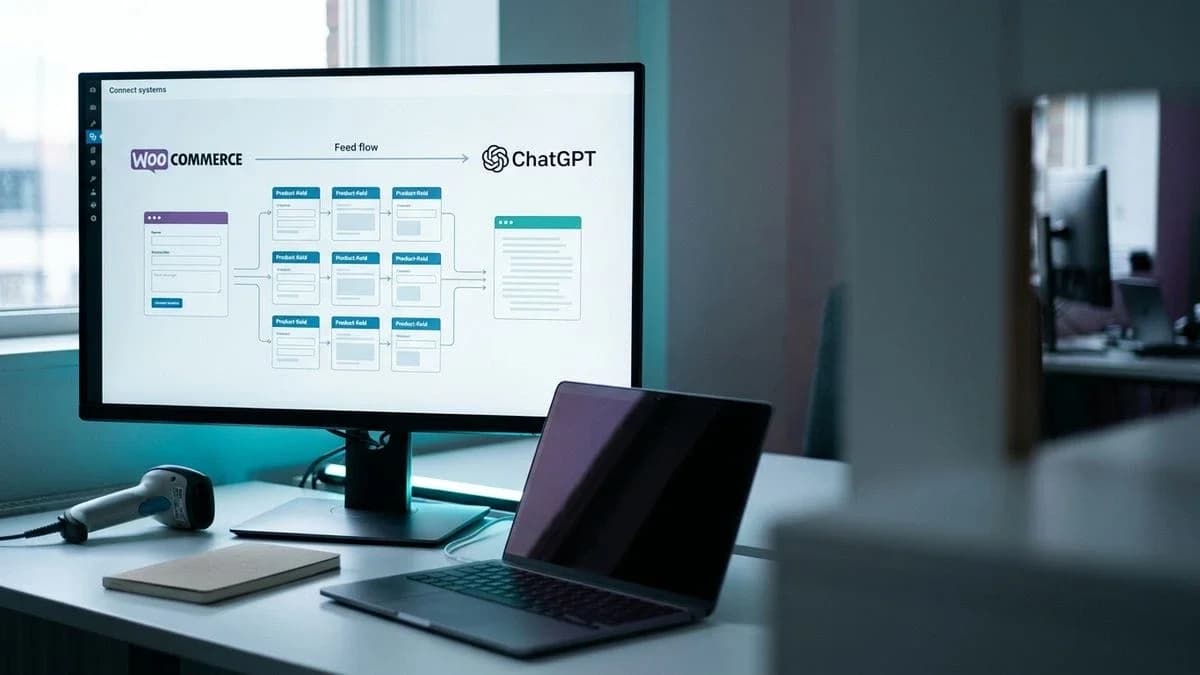
How to Connect WooCommerce to ChatGPT, Step by Step
Step-by-step guide to connect WooCommerce to ChatGPT: required feed fields, onboarding, validation and common errors, explained plainly.
Connect WooCommerce to ChatGPT: the practical path from catalog to feed
Connecting WooCommerce to ChatGPT means exposing your product catalog through a structured feed that OpenAI's shopping surface can read, using the Agentic Commerce Protocol (ACP). It requires a feed file with the nine fields that OpenAI's format requires on every row (item_id, title, description, url, brand, seller_name, image_url, availability, and price with a currency code), validated and then uploaded as OpenAI indicates once your store is approved as a merchant.
Many WooCommerce stores already have a product catalog that works fine for human shoppers browsing the site. What ChatGPT's shopping feed expects is different: a structured file with defined fields, not a webpage. A crawler visiting a product page can infer a price from the layout; a feed reader cannot infer anything, it only reads the field it expects in the format it expects. That's the practical gap between having a nice-looking store and having a catalog that OpenAI's feed can actually accept.
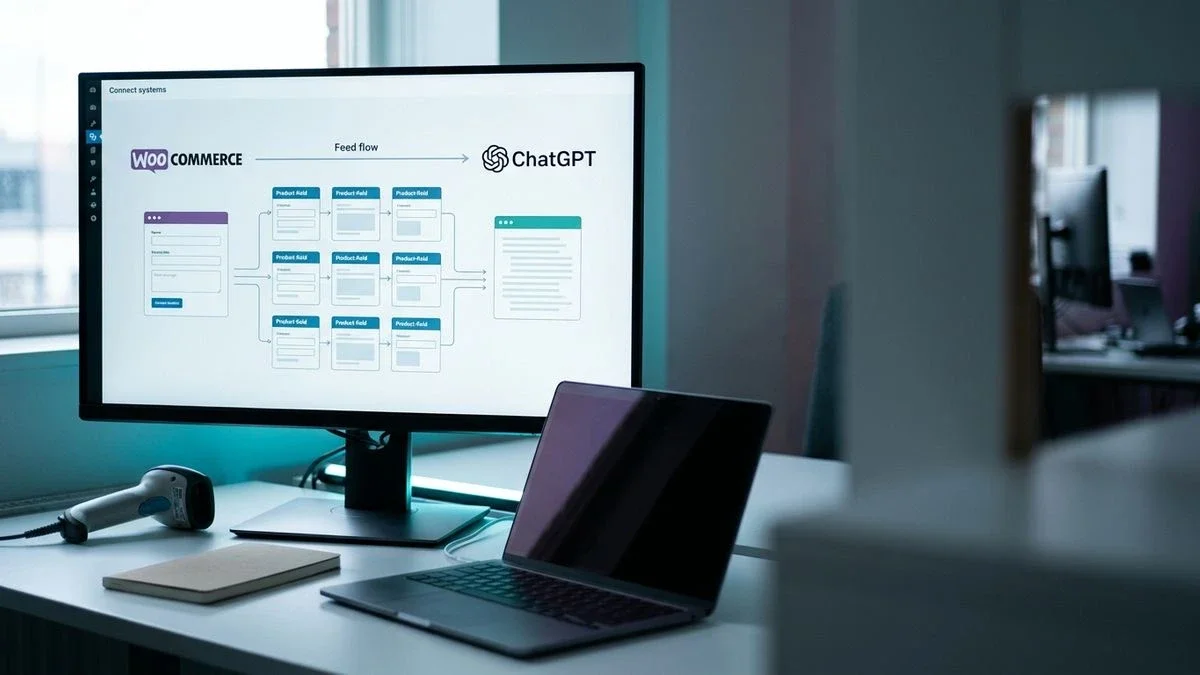
Why connecting WooCommerce to ChatGPT matters right now
Shoppers increasingly ask AI assistants directly for product recommendations, and a complete feed and clear product pages give the assistant accurate facts to work with.
This is not about replacing your existing SEO work: it's an additional surface. Google Shopping, your own store, and ChatGPT's shopping feed each have separate technical requirements, and being ready for one doesn't mean being ready for the other. A product page that ranks well in classic search does not necessarily have a valid feed: without a feed, ChatGPT knows the product only from the pages its crawler reads, with less control over price and availability.
Think of it in layers: the store layer is what a human sees, with photos, layout, reviews and a checkout button; the feed layer is what a machine reads, a flat list of fields with no visual context at all. A product can look perfect on the store layer and still fail completely on the feed layer, because the two layers are built for different readers. This is why a store owner can be surprised the first time a feed submission is rejected: nothing looks wrong on the site itself, but the feed behind it never had the right fields to begin with.
Catalog readiness: what to verify before connecting
Before connecting anything, check that every product has the nine fields ACP requires filled in with real, non-placeholder values.
The fields are: item_id (a stable unique identifier, usually the SKU), title, description, url (the canonical product URL), brand, seller_name (your store name), image_url, availability, and price (with a currency code). GTIN is optional in this format; in the Google-compatible CSV or TSV profile, which OpenAI accepts once it confirms that format for your feed, a GTIN or MPN is required unless identifier_exists is set to no. Missing even one of the nine required fields on a chunk of the catalog is usually the reason a feed submission gets rejected or partially ignored.
- Open the WooCommerce Products list and export the catalog to CSV using the built-in exporter, under Products > All Products > Export.
- Open the export and add a column for each of the nine ACP fields, checking off any product row where a field is empty, generic, or a placeholder value like "N/A".
- For every product without a GTIN, check whether one genuinely exists (look at the supplier packaging or invoice); if it does not, leave the field out in OpenAI's format, or set identifier_exists to no in the Google-compatible profile. Never invent one.
- Compare the price column against the live price shown on each product page, since sales and rounding often create silent mismatches.
- Check the availability value against WooCommerce's stock status field, making sure it maps to one of the allowed values, not a custom label.
- Titles that are just a model number, with no descriptive text
- Descriptions copied verbatim from a supplier PDF, including irrelevant boilerplate
- Variants (size, color) sharing the same id, which breaks uniqueness
- Prices without currency, or prices that don't match what's shown on the live page
- Missing brand field on private-label or handmade items
A small catalog is easier to check by hand, product by product, before generating the feed. It's worth doing this once thoroughly rather than fixing errors after a rejected submission. For example, a shop with thirty candles can go through the exported CSV row by row, flagging anything that reads "scented candle" as a title with no brand or size mentioned, and fixing it before the feed is even generated.
Multichannel sellers already listing on Amazon, Etsy or eBayIf you already maintain listings elsewhere, you likely already have most of the required data somewhere, just not in the WooCommerce fields ACP expects. The gap is usually in mapping, not in missing information. A GTIN sitting in an Amazon listing, for instance, often never made it into the WooCommerce product's custom field, so the feed generator sees it as missing even though the data exists somewhere in your systems.
How to connect your WooCommerce catalog to the ChatGPT product feed
There are two practical routes: the Stripe extension for WooCommerce, with Stripe's procedure for sharing the catalog, or a feed generated separately and submitted to OpenAI's merchant program.
The first route uses the official Stripe for WooCommerce extension, since ACP is built around Stripe's agentic checkout. If your store already processes payments through Stripe, this is usually the shortest path: follow the procedure indicated in Stripe's documentation to share your catalog.
- From the WordPress admin, go to Plugins > Add New and search for "Stripe for WooCommerce".
- Install and activate the extension, then go to WooCommerce > Settings > Payments > Stripe to confirm your existing Stripe account is connected.
- Follow Stripe's instructions to enable sharing your product catalog with agents.
- Check that item_id, price, and availability pull from the correct WooCommerce product attributes rather than defaults.
- Before any submission, check the feed file in the validator.
The second route is generating the feed independently, outside of Stripe, and submitting it directly through OpenAI's merchant onboarding. This is the path for stores using a different payment processor, or for sellers who want a feed generated from a catalog audit rather than raw WooCommerce data. A dedicated guide covers this in detail: how to submit the WooCommerce product feed to ChatGPT without errors.
A feed row missing one of the nine required fields is rejected, like a form with blank required fields: ChatGPT can still learn about the product only through the pages.
Merchant approval and feed upload, step by step
OpenAI accepts product feeds from approved merchants: once your store is approved, you prepare the feed file with the required fields and upload it as OpenAI indicates.
- Apply to OpenAI's merchant program for your store and wait for approval, since feeds are open only to approved merchants.
- Check that the url of every product uses your store's canonical domain, and use the same seller_name on every row.
- Generate the feed file with the nine required fields, in a format OpenAI accepts such as jsonl.gz, csv.gz, tsv.gz or parquet.
- Upload the file as OpenAI indicates, or submit the feed through a tool such as the Stripe extension.
- Read the upload history: it lists missing required columns and invalid values, so you can fix the product data and upload the file again.
Before uploading, it helps to have these pieces ready in one place: the exact canonical domain (with or without "www", matching exactly what's in your url field) and a feed file already checked against the nine required fields. Approval and a valid feed make your products eligible to appear in ChatGPT, but being eligible does not guarantee that they are shown.
How to confirm the connection actually worked
Confirmation means checking the feed against the required schema before submission, then reading OpenAI's upload history after each upload.
Before submitting, run the feed through Katapic's free feed validator. It checks every product row against the nine ACP fields and flags what's missing, without touching your store, so you can fix errors before OpenAI rejects the rows that contain them.
- Paste your feed URL into the validator and run the check.
- Review the report row by row: each flagged product lists the exact field that's missing or malformed.
- Fix the underlying WooCommerce product data, regenerate the feed, and re-run the validator until the report comes back clean.
- Only then upload the feed file as OpenAI indicates, or upload it again if rows were rejected.
- After every upload, check OpenAI's upload history, which lists missing required columns and invalid values, so that a later catalog change that breaks a previously valid field does not go unnoticed.
Common mistakes
Many rejections come from a handful of recurring issues, each with a clear cause and a straightforward fix.
- A row without a valid availability. Cause: the WooCommerce stock status was not mapped, or the value is not one of the allowed ones. Fix: map every stock status to an allowed availability value.
- Duplicate id. Cause: usually a variant shares the id of the parent product. Fix: give every variant its own id, distinct from the parent product.
- Unreachable image URL. Cause: the image URL returns a 404 or redirects elsewhere. Fix: check that the image hosting does not block external requests and that the URL points directly to the image file.
- Price mismatch. Cause: the price in the feed differs from the one shown on the live product page. Fix: regenerate the feed right after every price change, especially when a promotion ends.
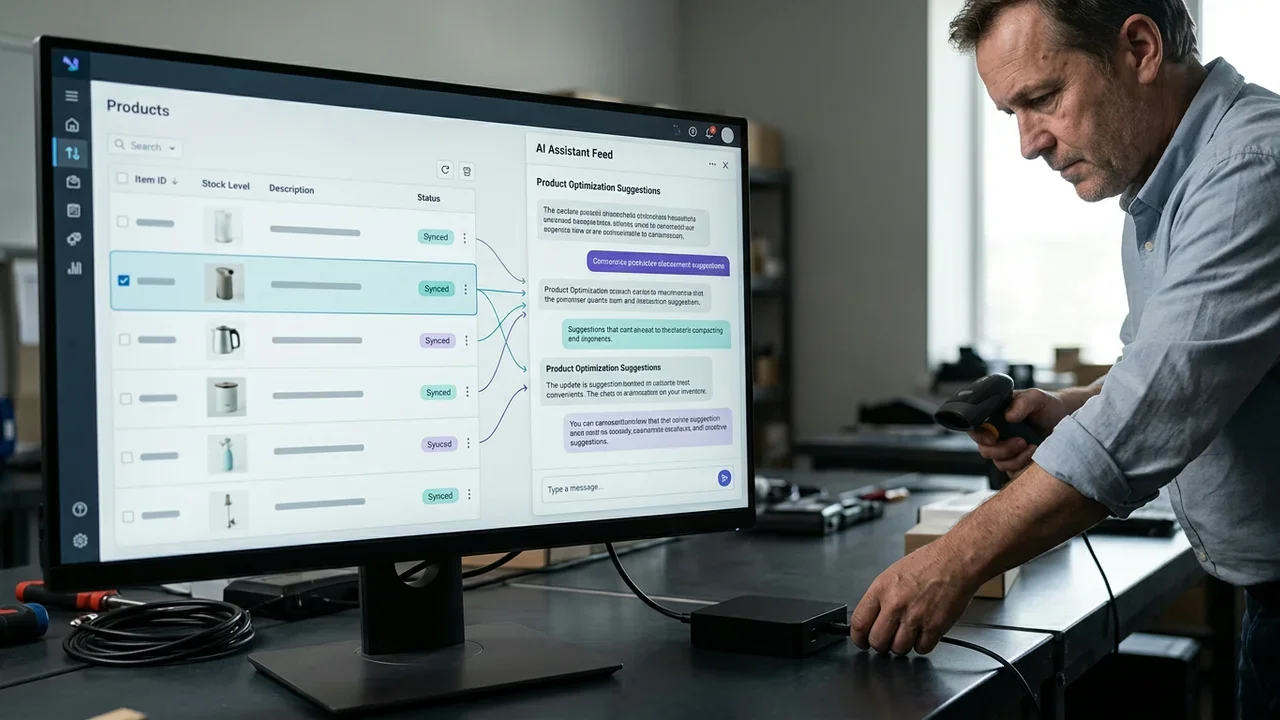
What changes after: monitoring citations in AI answers
Once the feed is live, the next task is watching whether your products actually get mentioned when someone asks ChatGPT for a recommendation in your category.
Being technically connected doesn't guarantee a citation; it only makes citation possible. It's worth periodically asking the kind of question a customer would ask, in your own category, and checking whether your store shows up, and which competitors get mentioned instead. This is a monitoring habit, not a one-time check, because feeds go stale and catalogs change.
- Once a week, ask ChatGPT a natural shopping question in your category, phrased the way a real customer would phrase it.
- Note whether your store is mentioned, and if not, which competitors are mentioned instead.
- Cross-check any product mentioned against your live feed to confirm the price and availability shown are still accurate.
- If a previously cited product stops appearing, check the validator again first, since a stale field is one of the possible causes.
A feed submitted once and never checked again drifts out of sync with the live store the first time a price or a stock level changes.Sellers who update prices or stock frequently
If your prices change often (seasonal items, limited drops), the feed needs to reflect that in near real time, otherwise the price mismatch error becomes a recurring problem rather than a one-off fix. For example, a store running a flash sale on Friday and reverting to full price on Monday needs the feed regeneration to happen automatically, not manually, or the mismatch will surface every single week.
Sellers managing a catalog with many handmade or one-off itemsHandmade items rarely have a GTIN, and each one is a slightly different id. Handling products without a GTIN correctly, without inventing one, is the main friction point for this group. A practical fix is to build the item_id field from a consistent pattern, such as category code plus a sequential number, so that even one-off pieces get a stable, unique identifier without manual guesswork each time.
Next steps to keep the catalog ready for ChatGPT
Keeping a feed ready for ChatGPT is an ongoing task: check field completeness after every catalog change, re-run the validator before re-submitting, and review a checklist periodically.
A structured checklist helps turn this into a repeatable routine rather than a one-time fix: the WooCommerce feed checklist before sending it to ChatGPT walks through the same fields covered here in a shorter, repeatable format. For a broader view of what AEO readiness means beyond the feed itself, five ways to measure WooCommerce product AEO readiness covers signals that matter even before a feed submission.
How Katapic supports the WooCommerce to ChatGPT connection
Katapic generates a ChatGPT-ready feed from your existing WooCommerce catalog and lets you check it against the required fields before you submit anything.
The free WooCommerce scan reads a public catalog in read-only mode, up to 100 products, without an account, scores each product on classic search readiness and AI assistant readiness, with its main issue; relevance, completeness and the field-level gaps that usually cause a feed to fail come with a free account. The channel readiness view then shows which products are ready specifically for the ChatGPT feed (ACP), alongside Google Shopping, Meta, and your own store, and exports the Google Shopping CSV for Merchant Center for only the products that pass. The free feed validator at the link above tells you which rows would be discarded and why, before submission to OpenAI. None of this replaces human judgment on your catalog: Katapic works on the facts you already have, and a rewrite is not charged unless it actually passes the fact check. You can start from Katapic's homepage with the free scan, no account required.
Frequently asked questions
How do I submit a WooCommerce product feed to ChatGPT?Prepare a feed file with the nine required fields of OpenAI's format filled in (item_id, title, description, url, brand, seller_name, image_url, availability, and price with a currency code). Once OpenAI has approved you as a merchant, upload it as OpenAI indicates, either through the Stripe for WooCommerce extension or as a file you generate independently.
Can I use an AI product description generator for WooCommerce before submitting the feed?You can, but the description field in the feed still needs to match what's shown on the live product page, and it should describe real product facts rather than invented specifications. Any rewriting tool used should preserve the actual attributes you already have, not fabricate new ones.
What's the difference between the WooCommerce OpenAI product feed and a regular Google Shopping feed?Both share several required fields, but the ChatGPT feed follows the Agentic Commerce Protocol structure tied to OpenAI's merchant program, while Google Shopping feeds follow Google Merchant Center's own specification. A product can be ready for one and not the other if field mapping differs.
Do I need a consultant to connect WooCommerce to ChatGPT, or can I do it with software?Most of the work is mechanical: filling required fields, validating the feed, and fixing literal error messages. A consultant can help with strategy and edge cases, but the field-by-field readiness check is something a validator tool covers directly; a longer comparison of the two approaches is in consulting or software for your artisan catalog.
How much does WooCommerce SEO consulting typically cost compared to using a feed tool?Consulting costs vary widely by scope and are usually billed as ongoing retainers, while feed and catalog readiness tools are typically a one-time or per-action cost. A detailed breakdown of what a WooCommerce SEO consulting engagement usually involves is covered in what a WooCommerce SEO consultation really costs.
Why isn't my WooCommerce product feed showing up correctly in ChatGPT?Possible causes include missing required fields, duplicate ids across product variants, image links that return an error, or a price in the feed that no longer matches the live product page. Running the feed through a validator before resubmission usually surfaces the exact field causing the rejection.
Where can I check if my WooCommerce catalog is ready for AI search before building a feed?A free, read-only scan can flag missing fields and completeness gaps at the catalog level before you even generate a feed. A list of free tools for this exact check is covered in free tools to check if your catalog is ready for AI search.
Frequently asked questions
- How do I submit a WooCommerce product feed to ChatGPT?
- Prepare a feed file with the nine required fields of OpenAI's format filled in (item_id, title, description, url, brand, seller_name, image_url, availability, and price with a currency code). Once OpenAI has approved you as a merchant, upload it as OpenAI indicates, either through the Stripe for WooCommerce extension or as a file you generate independently.
- Can I use an AI product description generator for WooCommerce before submitting the feed?
- You can, but the description field in the feed still needs to match what's shown on the live product page, and it should describe real product facts rather than invented specifications. Any rewriting tool used should preserve the actual attributes you already have, not fabricate new ones.
- What's the difference between the WooCommerce OpenAI product feed and a regular Google Shopping feed?
- Both share several required fields, but the ChatGPT feed follows the Agentic Commerce Protocol structure tied to OpenAI's merchant program, while Google Shopping feeds follow Google Merchant Center's own specification. A product can be ready for one and not the other if field mapping differs.
- Do I need a consultant to connect WooCommerce to ChatGPT, or can I do it with software?
- Most of the work is mechanical: filling required fields, validating the feed, and fixing literal error messages. A consultant can help with strategy and edge cases, but the field-by-field readiness check is something a validator tool covers directly.
- How much does WooCommerce SEO consulting typically cost compared to using a feed tool?
- Consulting costs vary widely by scope and are usually billed as ongoing retainers, while feed and catalog readiness tools are typically a one-time or per-action cost.
- Why isn't my WooCommerce product feed showing up correctly in ChatGPT?
- Possible causes include missing required fields, duplicate ids across product variants, image links that return an error, or a price in the feed that no longer matches the live product page. A validator usually surfaces the exact field causing the rejection.
- Where can I check if my WooCommerce catalog is ready for AI search before building a feed?
- A free, read-only scan can flag missing fields and completeness gaps at the catalog level before you even generate a feed, without requiring an account or changing anything in the store.